Managing Charities
Summary: Use your charities list to add, edit, or delete organizations you donate to. You can also add a charity inline while recording a donation, then fill in details later.
Where to find your charities
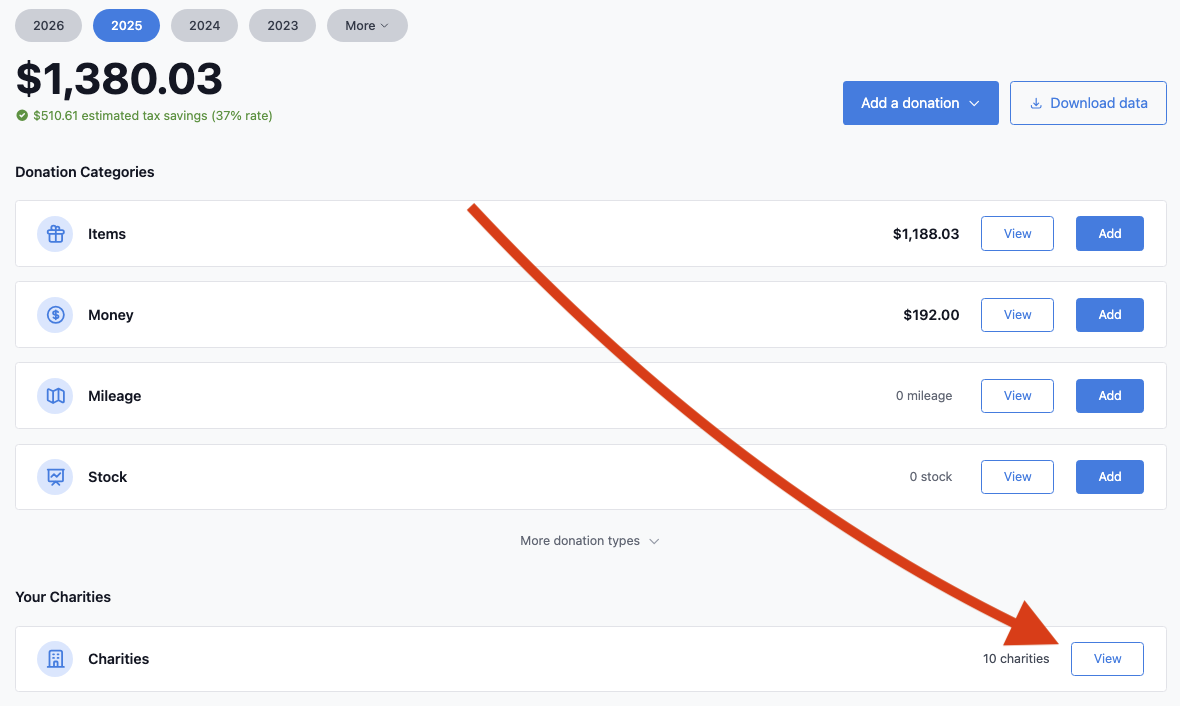
From any year on your dashboard:
- Find the Charities card and click View.
Your charity list is shared across years. The year you came from is used for the totals in the header and the Back link.
Add a charity
Option 1: Add while entering a donation
- In the Charity name dropdown, select + Create new charity.
- Enter the charity name and continue your donation.
- Add address or EIN details later from your charities list.
You can also click Add next to the dropdown to open the full add form.
Option 2: Add from your charities list
- On the charities list page, click Add a charity.
- Enter the organization details you have.
- Click Add charity.
Edit or delete a charity
- Click Edit to update details and then click Save changes.
- To delete a charity, select the trash icon and confirm with Delete.
If a charity has donations attached, Charity Record will not delete it. Delete the donations first if you need to remove the charity.
What information should I enter?
Required
- Organization name
Optional but helpful
- Street address, city, state, and ZIP code
- EIN
An EIN can help verify the organization, and some tax software may request it. You can look up EINs using the IRS Tax Exempt Organization Search.
Selecting a charity on donation forms
When you create a donation, choose the organization in the Charity name dropdown. If the charity is new, use + Create new charity or Add.
Charity Record is a donation tracking tool, not a tax advisor. This article summarizes publicly available IRS guidance to help you use our software. You are responsible for ensuring your tax filings comply with IRS requirements. For questions about organization status or deductibility, consult a tax professional for advice specific to your situation.