Two-Factor Authentication (2FA) options
Summary: Choose the sign-in method that fits your workflow: password only, password plus an email code, or password plus an authenticator app. You can switch methods anytime from your security settings.
Warning: Keep your codes private. Charity Record staff will never ask you to provide a 2FA code.
Where to find your login options
- Go to Personal Info.
- Open the Security section.
- Under Login Method, choose the option you want.
- Click Save security settings.
If you switch away from 2FA (to email code or password only), we ask you to confirm with your password.
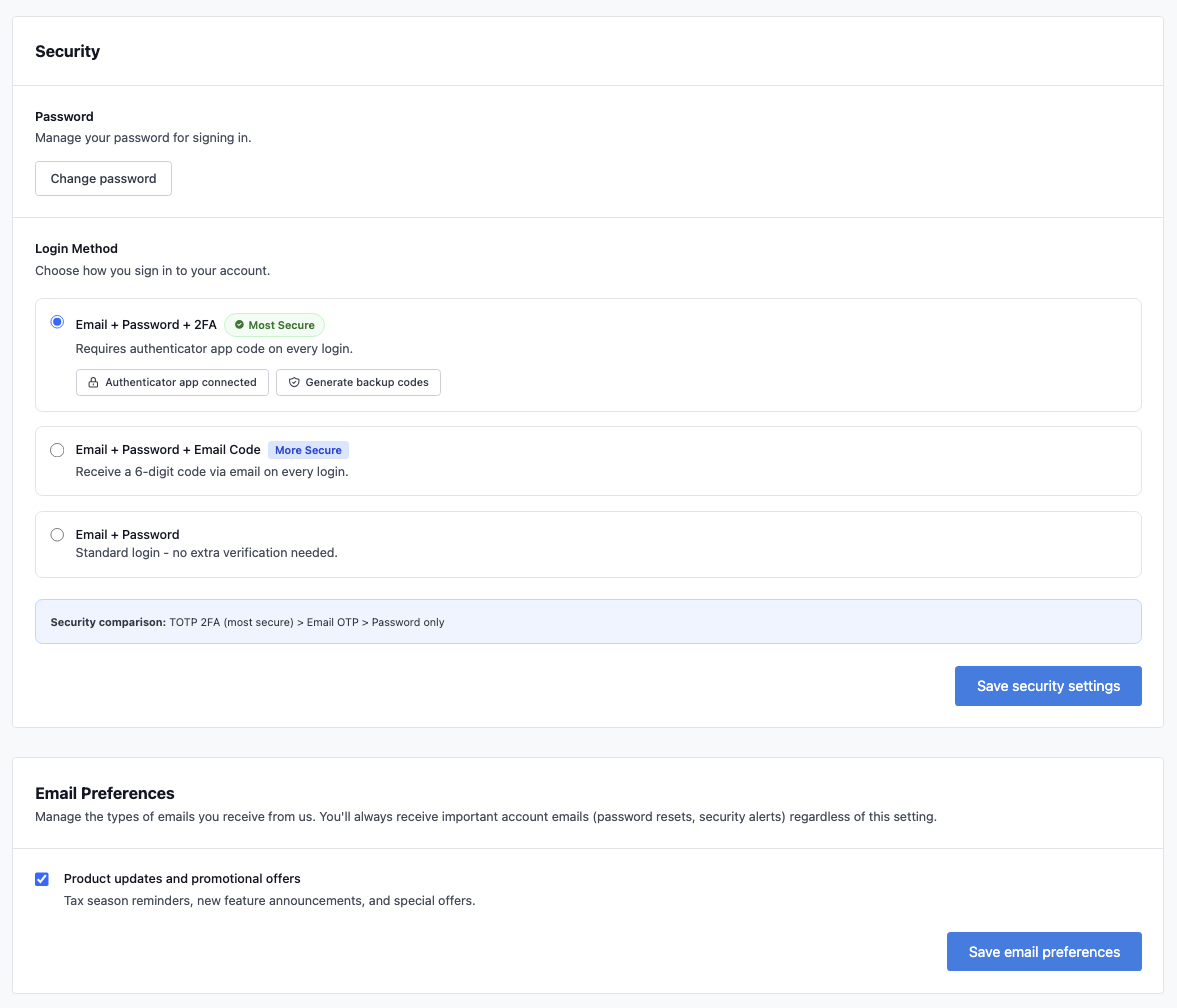 Find two-factor authentication options on your Personal Info page.
Login methods at a glance
Email + Password
- Standard login with your email and password.
Email + Password + Email Code
- We send a 6-digit code to your email on every login.
- Codes expire after 10 minutes. We will never ask you to share a code.
Email + Password + 2FA
- You enter a 6-digit code from an authenticator app on every login.
- This option uses a QR code to connect your app.
You can pick the option that fits your workflow and change it later.
Set up an authenticator app
From the Login Method section:
- Choose Email + Password + 2FA.
- Click Setup authenticator app.
- Click Set up 2FA to generate your QR code.
- Scan the QR code in your authenticator app.
- Enter the 6-digit code and click Verify & Enable 2FA.
After setup, you will see your backup codes. Save them in a secure place.
Recommended apps include Google Authenticator, Authy, and 1Password. Other authenticator apps work too.
Backup codes
Backup codes let you log in if you lose access to your authenticator app.
- Each code can be used once.
- Codes are shown only when they are generated.
- You can copy, download, or print codes from the backup codes screen.
- You can Generate backup codes or Regenerate backup codes from the Login Method section.
To use a backup code, enter it instead of your authenticator code at login.
Disable 2FA
To disable 2FA:
- From Personal Info → Security, click Authenticator app connected.
- Click Disable 2FA.
- Enter the 6-digit code from your authenticator app to confirm.
Need help logging in?
If you no longer have your authenticator app, use a backup code. If you do not have backup codes, contact support for help with account access.
Security and privacy details
For more about how we protect and retain your data, see our Privacy Policy and Terms of Service.