Custom items and submitting items to the guide
Summary: Use a custom item when the FMV guide does not include a comparable item in your donation. You can enter your own description and fair market value, save the item, and (optionally) submit it anonymously for a future pricing guide review.
When to use custom items
Custom items are a good fit when:
- Your item is not in the Charity Record FMV guide
- You have a more specific description than the guide entry (for example, a designer handbag where the guide only lists a generic "Handbag")
- You have better comparable-sales data for your exact item (for example, recent eBay sold listings for the same brand and model)
- Your item is like-new or nearly new and worth more than the guide's standard used price
- The item is in less than good used condition (with exceptions, see below-good condition)
For an overview of item donations, see Recording item donations.
How to add a custom item
- Open your item donation and start a custom entry:
- Next to Don't see your item?, click Enter a custom valuation.
- Or select a similar item from the guide and click Edit as custom.
- Enter an Item description.
- Select quality.
- Enter quantity.
- Enter estimated value per item.
- Strongly recommended: add Valuation notes.
- Click Add to donation.
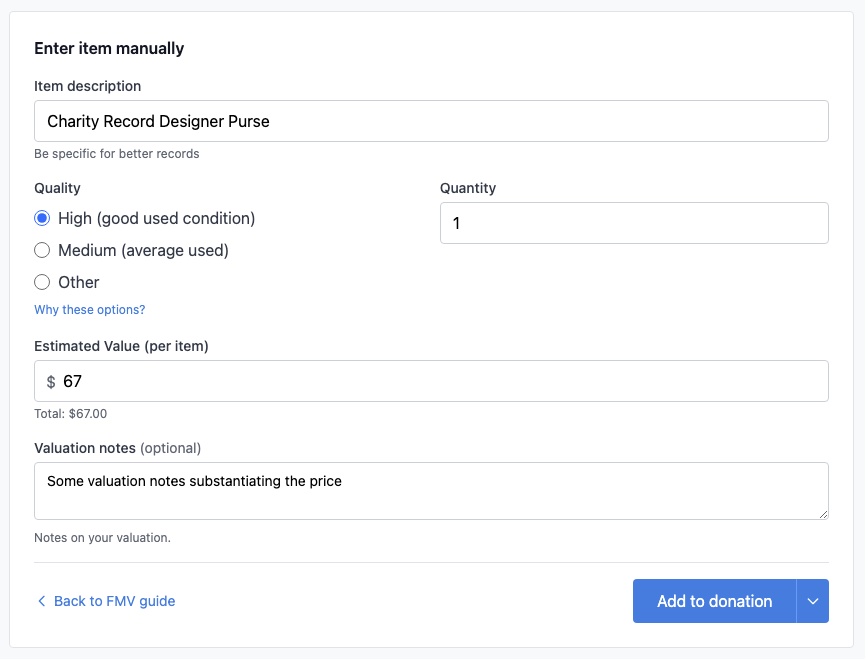 You can add a custom item in Charity Record
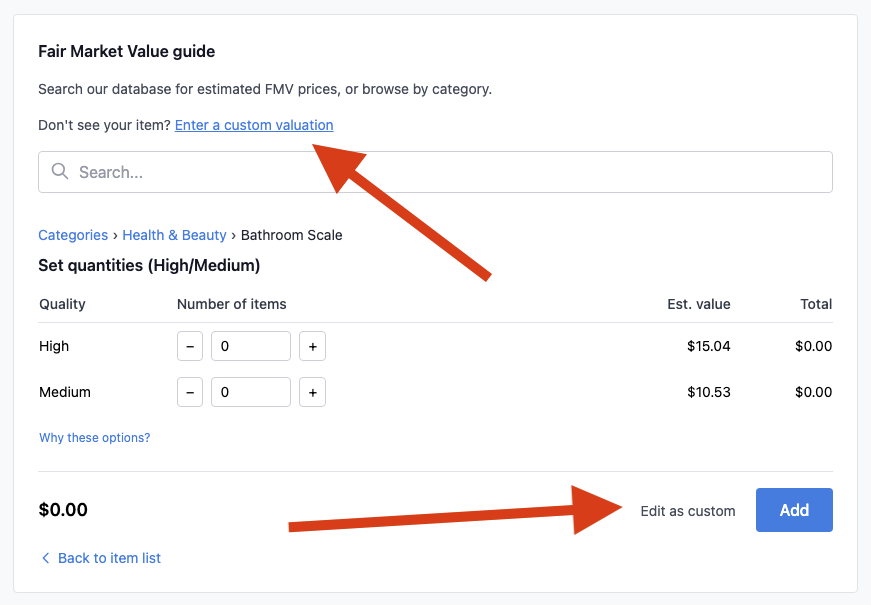 Add a custom item is linked from the top of the item entry form, and inside similar items
FMV guidance for custom items
For custom items, your value should generally come from comparable sales and condition-based adjustments.
According to IRS Publication 561, FMV is what a willing buyer would pay a willing seller when both know the relevant facts.
- Check sold prices for similar used items (for example at thrift stores, eBay sold listings, or local marketplaces)
- Adjust for brand, age, wear, and completeness
- Keep notes and supporting records (photos, listings, receipts, appraisals when required)
Use this article with:
Items not in good condition
According to IRS Publication 526, donated clothing and household items must generally be in good used condition or better to qualify for a deduction. Custom items let you record items that fall outside this standard by selecting Other quality.
You can deduct an item in less than good condition if all of these apply:
- The single item is valued at more than $500
- You obtain a qualified appraisal (and attach it to your return)
- You file Form 8283 Section B with your tax return
To record a below-good-condition item: add it as a custom item, select Other for quality, and explain the condition and your valuation method in the Valuation notes field. See Recording item donations and Form 8283 basics for more details.
Submit item to guide (Suggest for pricing guide)
When you enter a custom item, you can optionally submit it for future guide review. If you do not see this option, it may be hidden in your preferences (more below).
How to submit
- In manual item entry, click the arrow next to Add to donation
- Click Suggest for pricing guide
- Optionally add a link in Link to similar used item
- Click Suggest
After submission, the menu shows Suggested for review for that item.
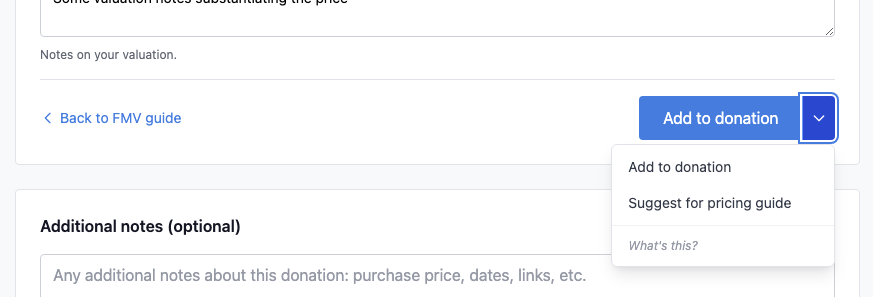 The custom item 'Add to donation' split allows you to submit a custom item for a future guide, when enabled
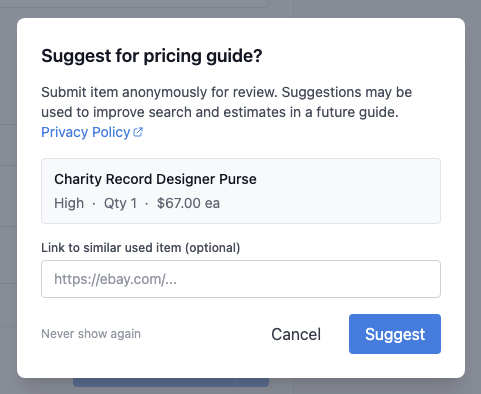 You can optionally add additional detail to a custom item submission
What data is submitted with this option
When you submit a suggestion, Charity Record stores:
- Item description
- Quality
- Quantity
- Estimated value per item
- Category and subcategory context (if present)
- The donation year (derived from your donation date)
- Optional source URL you enter
Suggestions are submitted anonymously for review and may be used to improve guide search and future estimates.
Charity Record does not attach your account ID to the suggestion record for this feature. Submissions are handled under our Privacy Policy. For broader platform data handling details, see our Privacy Policy and Terms of Service.
What happens after you submit
- Suggestions are reviewed for possible future guide updates
- There is no guaranteed timeline for inclusion
⚠️ Submission does not guarantee the item will be added to a future FMV guide, and we do not provide individual review-status updates.
Turn this option off
You can hide this feature in either place:
- Click Never show again in the suggestion modal
- Go to Personal Info → Communication and Sharing → turn off Item suggestions
To turn the ability to suggest back on, go to Personal Info → Communication and Sharing → turn on Item suggestions
Privacy and terms
This article summarizes product behavior for custom-item suggestions. For full legal and data-handling terms, see:
Charity Record is a donation tracking tool, not a tax advisor. You are responsible for determining fair market value for your donations. Values you enter for custom items are saved as-is and reflected in any exports. Neither the built-in FMV guide nor custom item values constitute tax advice or a professional appraisal. For valuation questions, items not in good condition, or appraisal requirements, consult a tax professional for advice specific to your situation.