Exporting and printing donations
Summary: Download your donations as CSV, HTML, PDF, or TXF. Export everything at once from Download data on your dashboard, or export individual donations and summaries from the Download button on any donation list page.
Use CSV for spreadsheets, PDF or HTML for printing, or TXF to import into tax software.
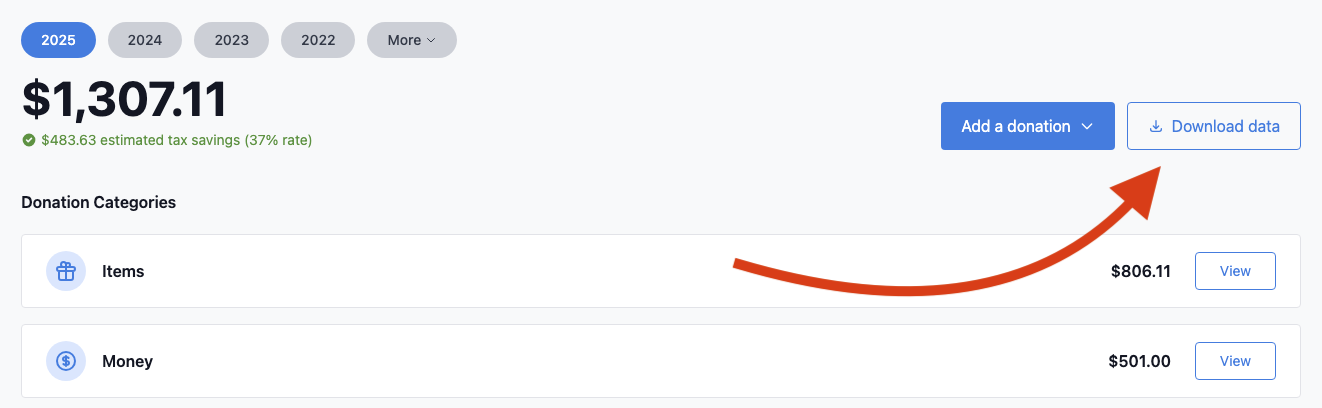 Click Download data on your dashboard to open the export options. Continue reading to see how to export donation summaries.
Choose a format
CSV exports are available to all accounts. PDF, HTML, and TXF exports are paid plan features. See sample HTML, PDF, and TXF exports.
CSV – Download one CSV per donation type (items, cash, mileage, stock, vehicles, digital assets, art) plus an overall summary. You can download them individually or click Download All for a single ZIP per year.
CSV opens in Excel, Google Sheets, or most spreadsheet apps. You can also import CSVs into Charity Record. See the Import format guide for column details.
HTML – Opens a well-formatted donation report for a given year in your browser. Click Print at the top of the page to print directly.
PDF – Best for printing or sharing with your tax preparer. Professional layout organized by charity, with Schedule A and Form 8283 fields included based upon your entries in Charity Record.
TXF – Imports into TurboTax Desktop or H&R Block Desktop with various degrees of support. Cash and mileage donations need the fewest edits after import. Other types need more updates. We provide an Import Guide with entry help (tailored to TurboTax). Advanced options include individual file exports (ZIP) for H&R Block or working around merge issues, as well as add-on exports for new donations added after a previous export.
How to export annual data
- Go to your dashboard
- Click Download data
- Select the tax year
- Choose your format (CSV, HTML, PDF, or TXF)
- Click the download or preview button
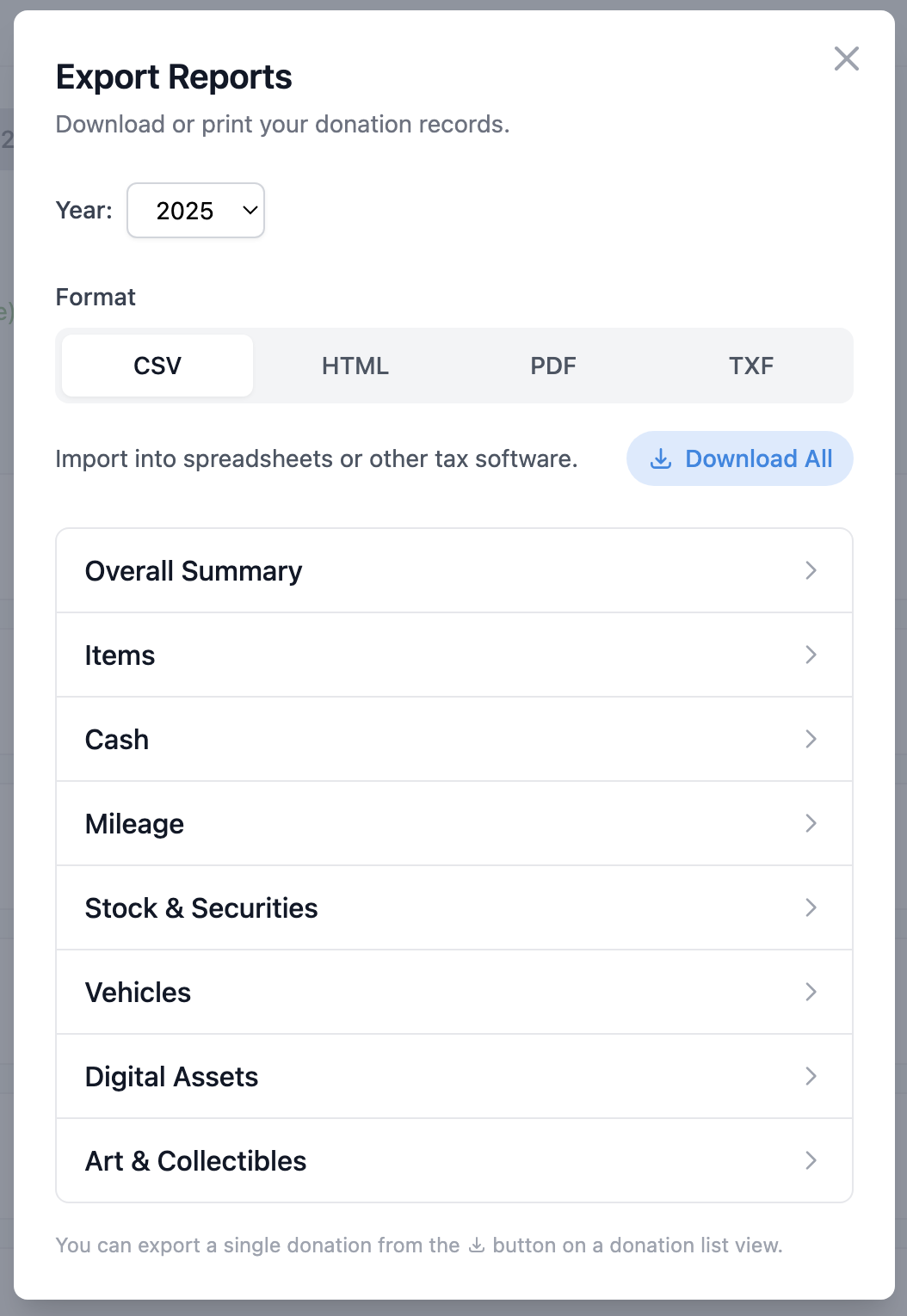 Choose your format and year, then download or preview
For PDF and HTML, you can also choose how to organize your report:
- By charity – Groups donations by organization (default)
- By date – Lists donations chronologically
- By form – Groups by donation type (for Form 8283 prep)
How to export a single donation report
You can also export any individual donation summary directly from a donation list page.
- Go to any donation list (click View on a donation category card)
- Find the donation you want to export
- Click the Download button in that row
- Choose Export Report (HTML), Export Report (PDF), or Export CSV
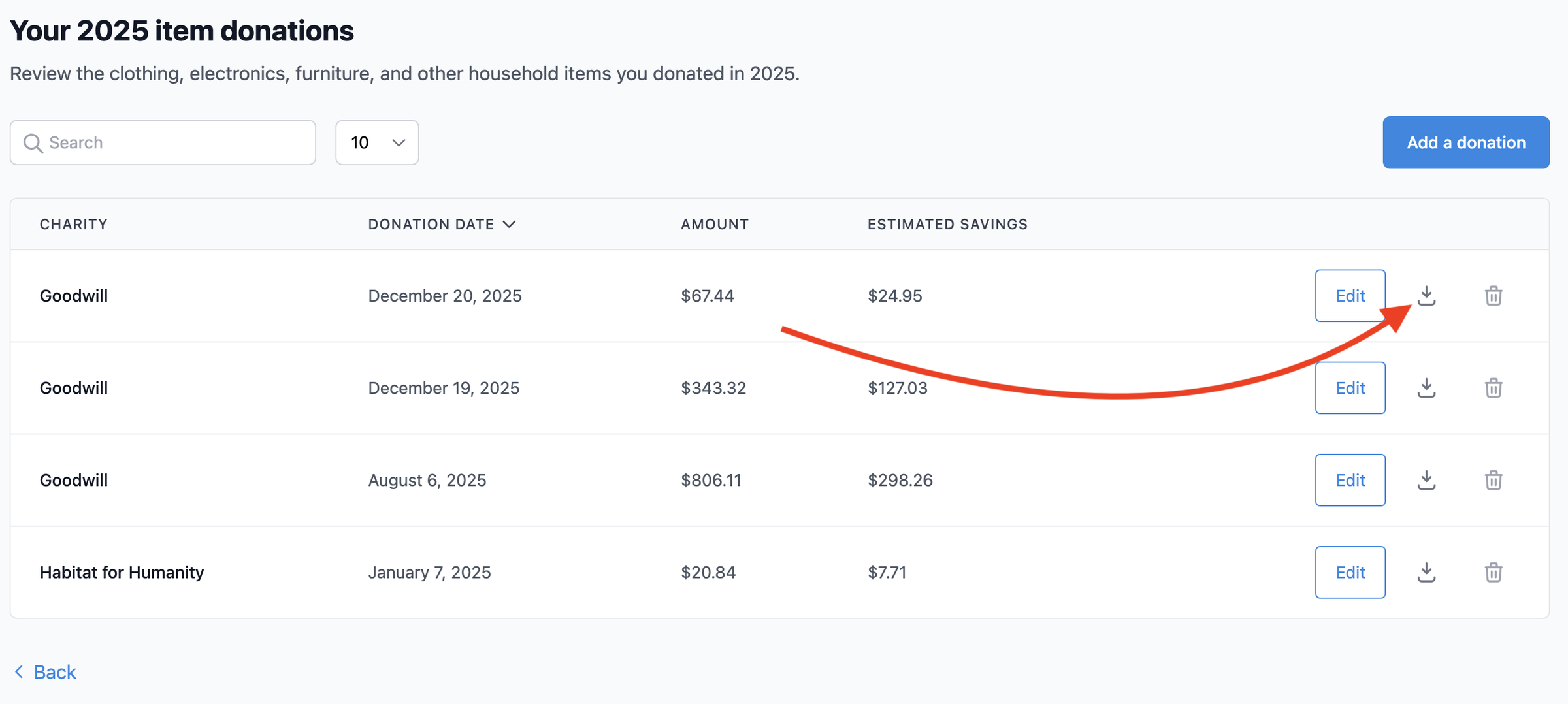 Click the download button on any donation row to export a donation summary
ℹ️ CSV exports are available to all accounts. HTML and PDF reports are paid plan features.
This feature is useful when your tax preparer asks about a specific donation, or you want a log for a particular trip or contribution.
Print your donations
The easiest way to print a donation report is through the HTML export:
- Click Download data → HTML tab → Download Report
- Click Print at the top of the report
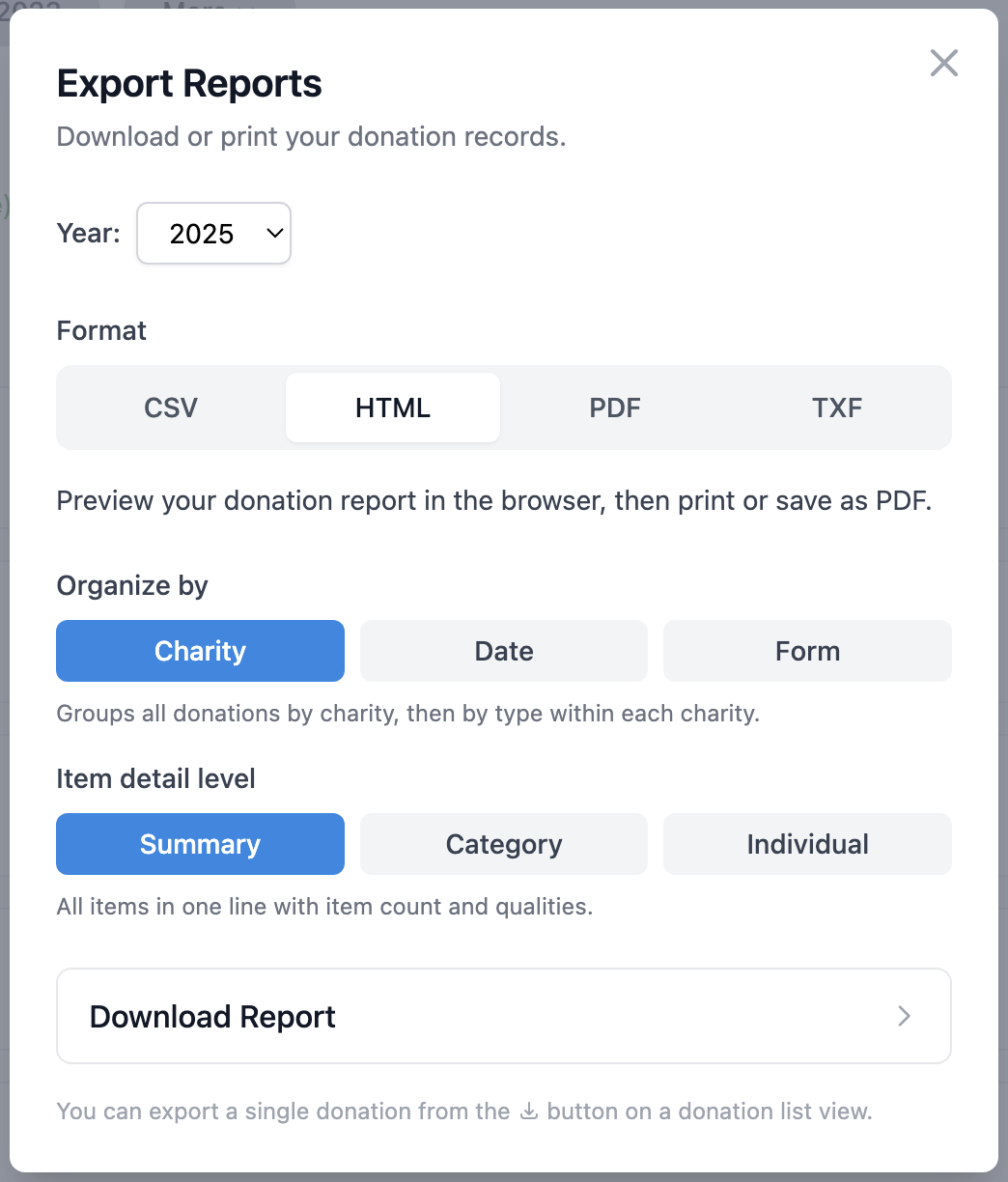 HTML report generation options
Or download the PDF and print from your PDF viewer.
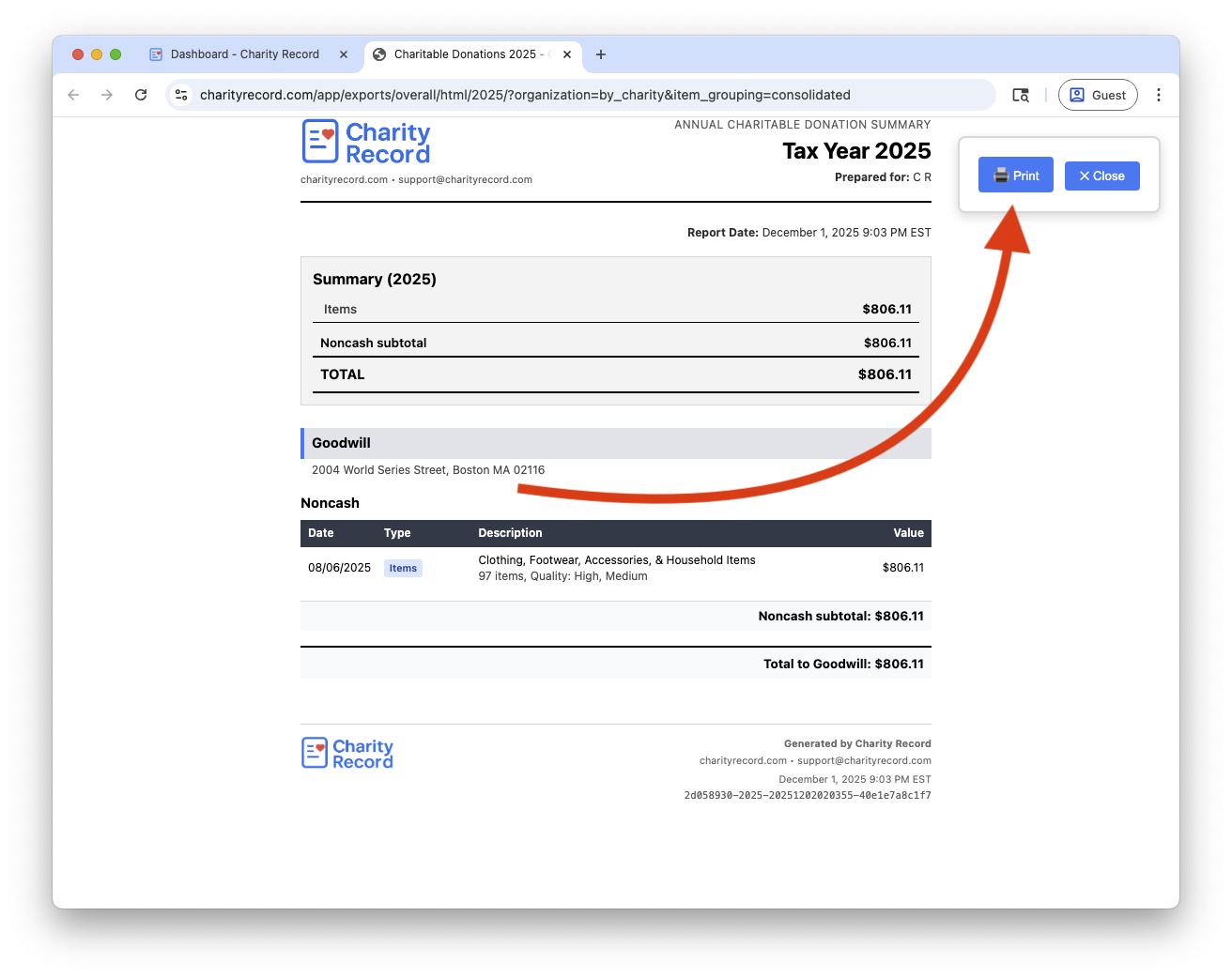 Click Print at the top of any HTML report
Printing tips:
- Use US Letter (8.5" × 11") paper
- Preview before printing to check page breaks
TXF for tax software
TXF is a 1990s format that TurboTax Desktop and H&R Block Desktop support to various degrees. We support TXF, but in many cases you should use the other export formats.
To import:
- Export your TXF file from Charity Record
- In your tax software:
- TurboTax (Windows): File → Import → From Accounting Software
- TurboTax (Mac): File → Import → From TXF Files
- H&R Block: File → Import Financial Information
- Select the downloaded file
- Review and update any flagged donations
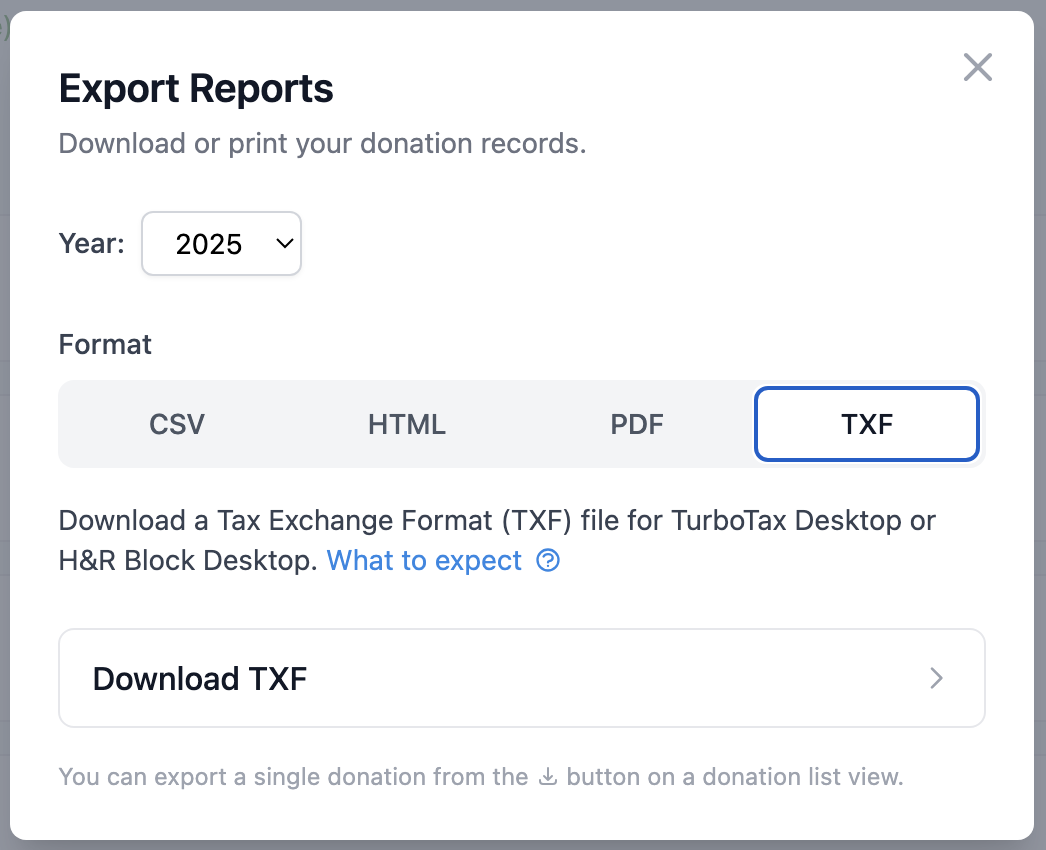 Click Download TXF to enter the TXF export options screen
Cash and mileage import with few issues. Items import fine (with some exceptions – we'll guide you if you encounter them. Note you will need to enter a purchase price and other details during tax software interviews if Form 8283 is triggered.). Stock, vehicles, art, and digital assets need updates after import – we provide an Import Guide with a walkthrough for each donation.
For tutorials, see our guides for TurboTax and H&R Block. Intuit also has TXF instructions for TurboTax here.
Common questions
Which format should I use for my tax preparer? PDF is usually best. It's professional-looking, organized by charity or the aggregation you choose, and includes the fields your preparer will need for Form 8283 (if you entered them in Charity Record).
How do I print or export a single donation? Go to any donation list page, find the donation, and click the download button on that row. Choose Export Report (HTML) to open a printable HTML page, Export Report (PDF) to download a PDF, or Export CSV for a spreadsheet. CSV is free for all accounts. HTML and PDF are paid plan features.
Can I export multiple years at once? Export each year separately. Select the year in the export modal, then repeat for each year you need.
Charity Record is a donation tracking tool, not a tax advisor. Consult a tax professional for guidance specific to your situation.