Importing TXF files into H&R Block Desktop (Windows or Mac)
Summary: H&R Block Desktop can import TXF files from financial software. This guide covers importing charitable donation TXF files exported from Charity Record.
With charitable donation TXF exports, H&R Block Desktop tends to aggregate donations into two totals (cash and non-cash), losing per-charity detail. Below are the basics and workarounds.
For a general overview of TXF and what to expect, see TXF Export: What to Expect. Also, see the TurboTax tutorial.
Quick start
To import a TXF file after exporting from Charity Record, here are the basic steps:
- Open H&R Block Desktop
- Go to File → Import Financial Information
- Select Other program that supports Tax Exchange Format (TXF)
- Choose your downloaded
.txffile
The aggregation problem
H&R Block merges cash donations into one screen, as well as non-cash donations into another. You lose the per-charity breakdown that TurboTax Desktop preserves.
Example: If you import the full TXF when you donated $100 to Goodwill and $50 to Red Cross, H&R Block shows one $150 "Cash Contributions" line — not two separate donations.
This makes it harder to review your donations or make corrections after import.
You can either use our TXF Split option and enter information on donations one at a time, or export to PDF (or export to HTML) (more here and manually enter donation lines.
Workaround: Split the TXF export into individual files
Use our Download as ZIP option to work around H&R Block's aggregation. Click the down arrow button on Download TXF, then Advanced TXF Options...
 Click the down arrow, then Advanced TXF options.
Check Download as ZIP to create one TXF file per donation:
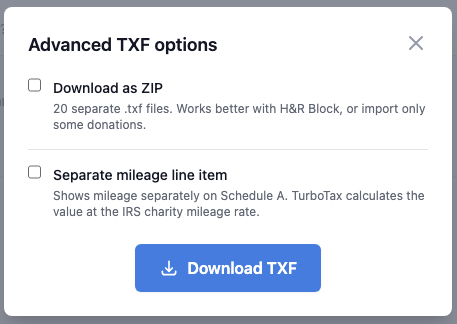 Check Download as ZIP to split donations into individual files.
Import each file separately in H&R Block, then add information before importing the next donation. This preserves individual donation amounts and lets you fix the dates.
Note: If you donated to the same charity on different dates, you may see a short date in the charity name (e.g., Goodwill (6/15)). This prevents tax software from merging separate donations. You can shorten the name back after import.
Alternative: Manual entry
If TXF import isn't working well for your situation, export PDF or CSV from Charity Record and enter donations manually:
- Go to Federal → Deductions
- Select Cash or Money Donations for cash/mileage
- Select Noncash item donations for items, stock, vehicles, etc.
This takes longer but gives you full control over how donations appear in your return.
Coming soon
We're preparing a detailed tutorial with screenshots showing the full H&R Block import flow, including step-by-step guidance for complex donation types. Check back for updates.
Charity Record is a donation tracking tool, not a tax advisor. This article summarizes publicly available guidance to help you use our software. You are responsible for ensuring your tax filings comply with IRS requirements.