Exporting and printing donations
Summary: Download your donations as CSV, HTML, PDF, or TXF. Export everything at once from Download data on your dashboard, or export individual donations and summaries from the Download button on any donation list page.
Use CSV for spreadsheets or to export all the data you entered, PDF or HTML for printing, or TXF to import into tax software.
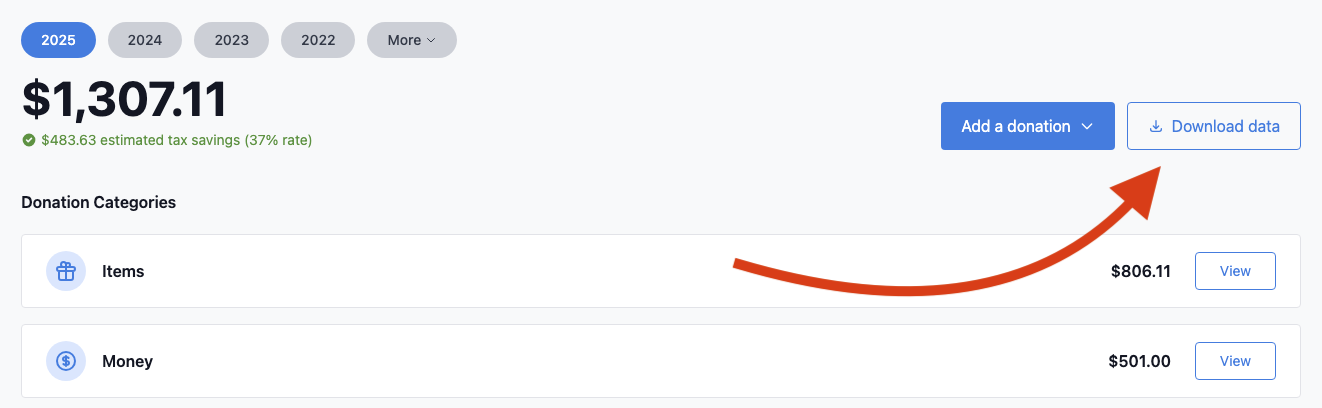 Click Download data on your dashboard to open the export options. Continue reading to see how to export donation summaries.
Choose a format
CSV exports are available to all accounts. PDF, HTML, and TXF exports are paid plan features. See sample HTML, PDF, and TXF exports.
CSV – Download one CSV per donation type (items, cash, mileage, stock, vehicles, digital assets, art) plus an overall summary. You can download them individually or click Download All for a single ZIP per year.
CSV opens in Excel, Google Sheets, or most spreadsheet apps. It includes all of the details you provided to Charity Record for your donation. You can also import CSVs into Charity Record. See the Import format guide for column details.
HTML – Opens a well-formatted donation report for a given year in your browser. Click Print at the top of the page to print directly.
PDF – Best for printing or sharing with your tax preparer. A printable summary organized by charity, date, or tax form, with each donation date kept separate. You choose how much item detail to include (see below). For per-unit values, custom categories, and full valuation notes, use the Items CSV.
TXF – Imports into TurboTax Desktop (Online does not support TXF) or H&R Block Desktop with various degrees of support. Cash and mileage donations need the fewest edits after import. Other types need more updates. We provide an Import Guide with entry help (tailored to TurboTax). Advanced options include individual file exports (ZIP) for H&R Block or working around merge issues, as well as add-on exports for new donations added after a previous export.
How to export annual data
- Go to your dashboard
- Click Download data
- Select the tax year
- Choose your format (CSV, HTML, PDF, or TXF)
- Click the download or preview button
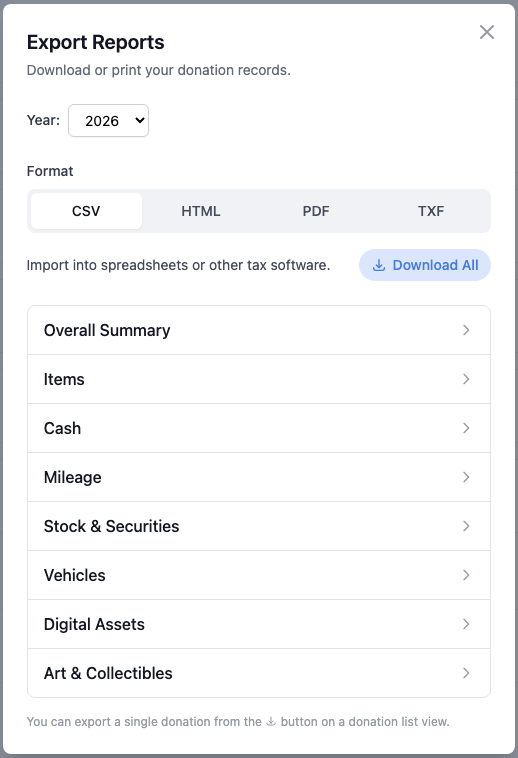
Choose your format and year, then download or preview
For PDF and HTML, you can also choose how to organize your report. Under Organize by, pick:
- Charity – Groups donations by organization, then by type, with each donation date on its own line (default)
- Date – Lists all donations chronologically, regardless of charity
- Form – Groups cash and mileage (Schedule A) separately from non-cash donations (Form 8283)
Under Item detail level, choose how item donations appear:
- Summary – One line per charity and donation date, with the item count and qualities
- Category – One line per category (clothing, books, and so on) for each charity and donation date. Helpful for reviewing Form 8283 similar-item thresholds
- Individual – One line per item with its description, quantity, quality, total value, valuation method, and any donation notes
Items that need closer review – for example, a single item you valued over $5,000 – get their own line for all detail levels. Report totals and the Form 8283 category note always cover a full year.
How to export a single donation report
You can also export any individual donation summary directly from a donation list page.
- Go to any donation list (click View on a donation category card)
- Find the donation you want to export
- Click the Download button in that row
- Choose Export Report (HTML), Export Report (PDF), or Export CSV
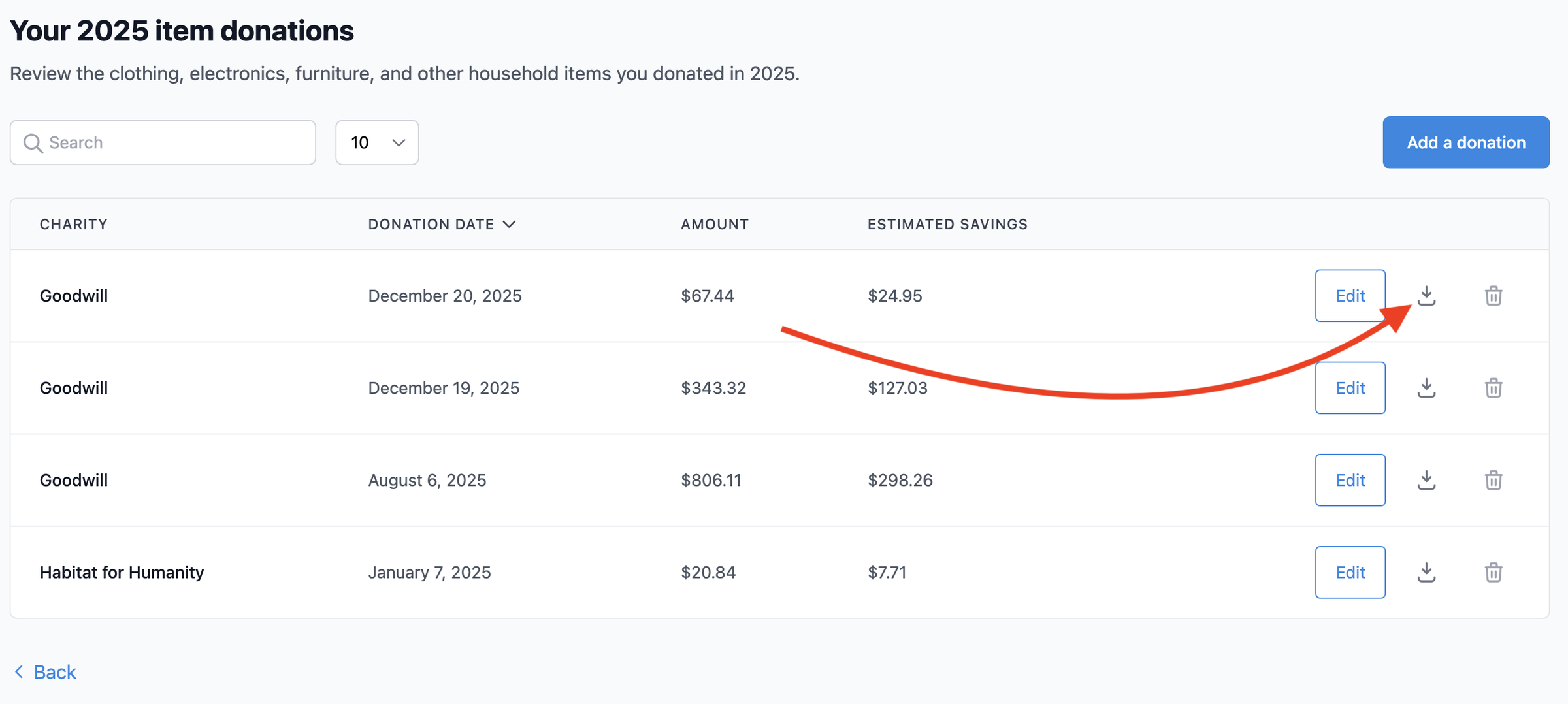 Click the download button on any donation row to export a donation summary
ℹ️ CSV exports are available to all accounts. HTML and PDF reports are paid plan features.
This feature is useful when your tax preparer asks about a specific donation, or you want a log for a particular trip or contribution.
Print your donations
The easiest way to print a donation report is through the HTML export:
- Click Download data → HTML tab → Download Report
- Click Print at the top of the report
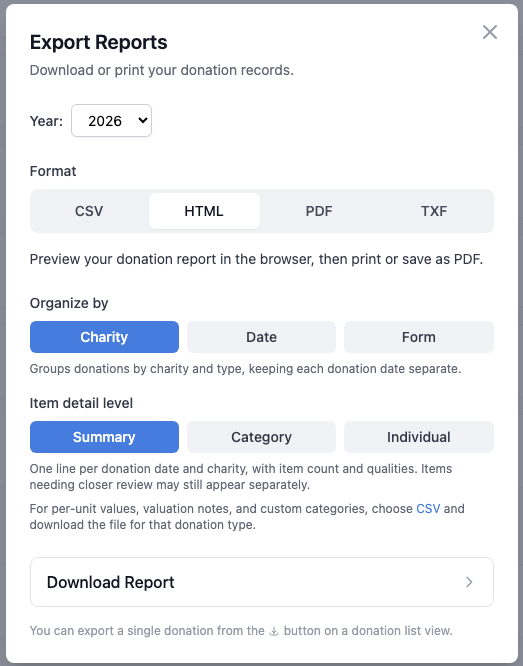
HTML report generation options
Or download the PDF and print from your PDF viewer.
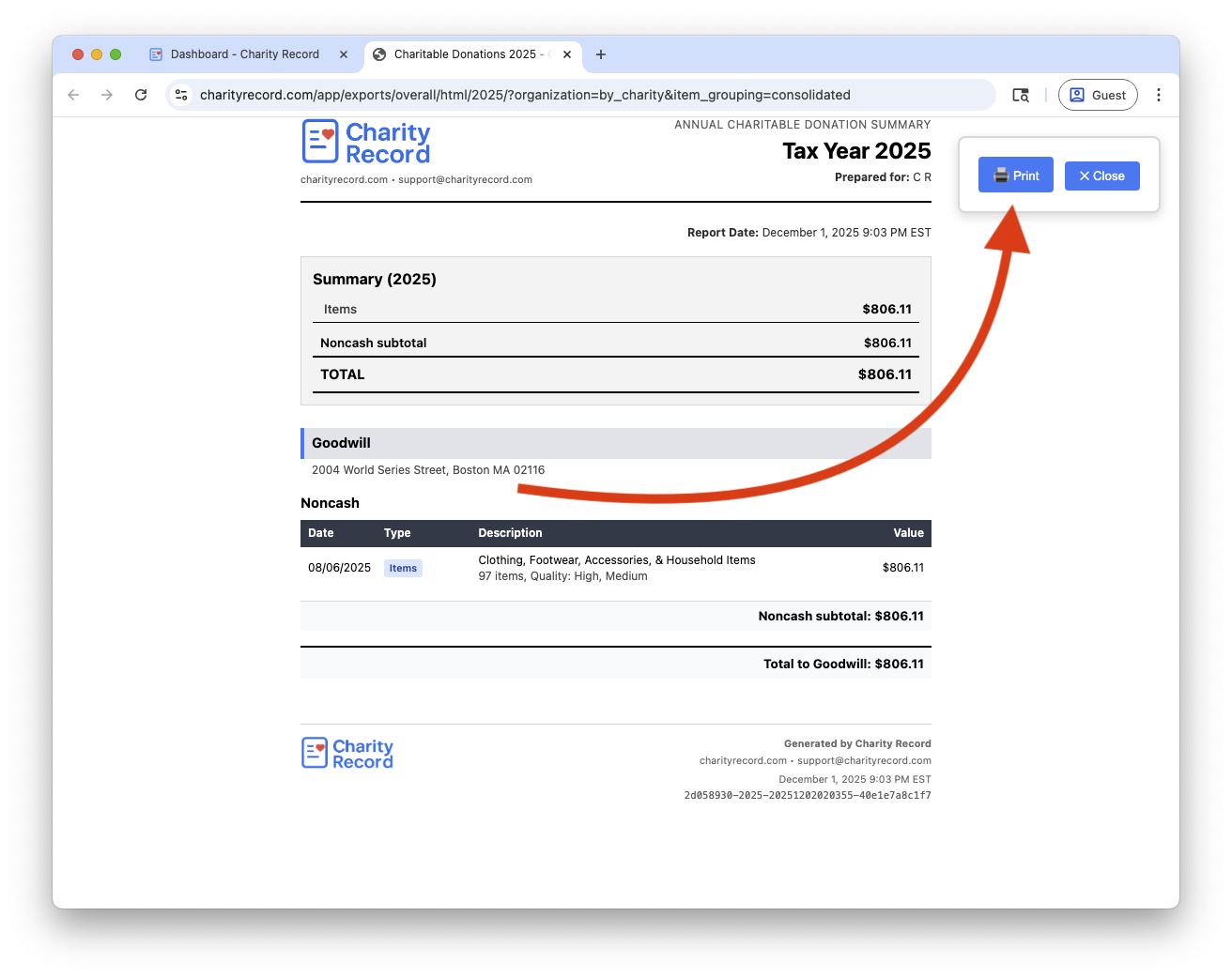 Click Print at the top of any HTML report
Printing tips:
- Use US Letter (8.5" × 11") paper
- Preview before printing to check page breaks
TXF for tax software
TXF is a 1990s format that TurboTax Desktop and H&R Block Desktop support to various degrees. We support TXF, but in many cases you should use the other export formats.
To import:
- Export your TXF file from Charity Record
- In your tax software:
- TurboTax (Windows): File → Import → From Accounting Software
- TurboTax (Mac): File → Import → From TXF Files
- H&R Block: File → Import Financial Information
- Select the downloaded file
- Review and update any flagged donations
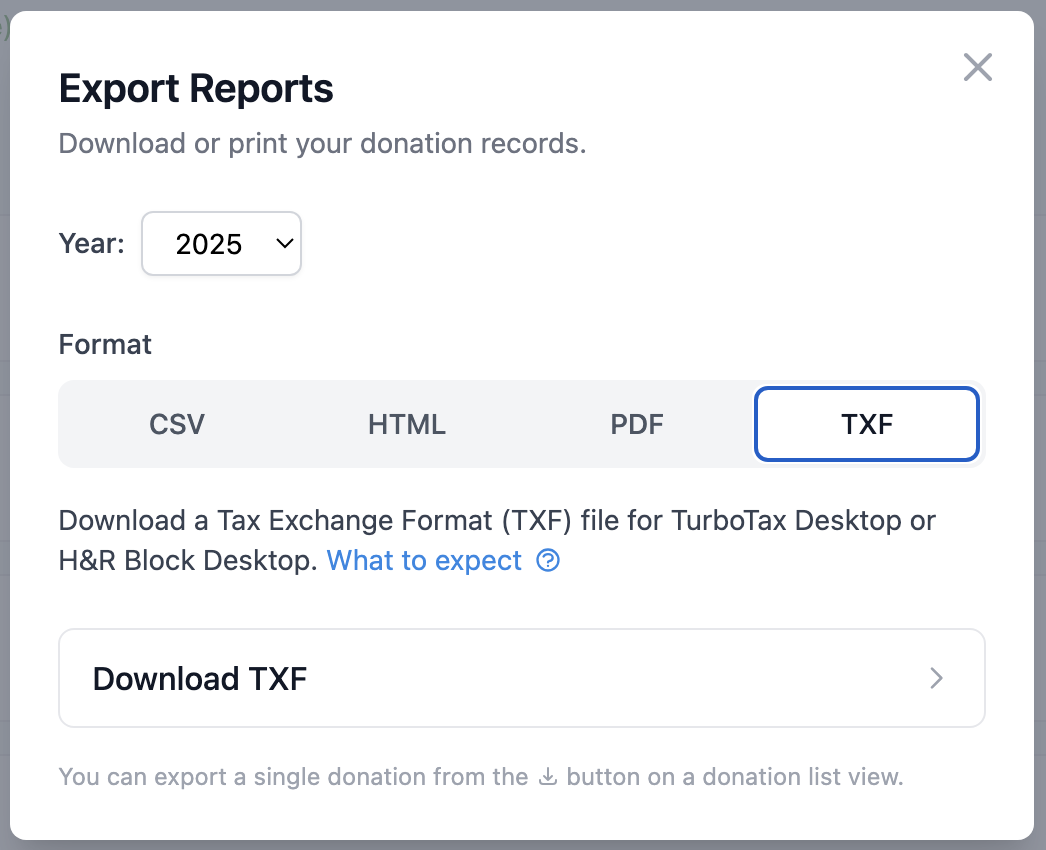 Click Download TXF to enter the TXF export options screen
Cash and mileage import with few issues. Items import fine (with some exceptions – we'll guide you if you encounter them. Note you will need to enter a purchase price and other details during tax software interviews if Form 8283 is triggered.). Stock, vehicles, art, and digital assets need updates after import – we provide an Import Guide with a walkthrough for each donation.
For tutorials, see our guides for TurboTax and H&R Block. Intuit also has TXF instructions for TurboTax here.
Common questions
Which format should I use for my tax preparer? Start with PDF or HTML for a dated summary, and choose Individual if your preparer wants to see each item and your donation notes. If they need per-unit values, custom categories, or full valuation notes for items, also send the Items CSV. The Overall Summary CSV is a summary, not a line-by-line export.
How do I print or export a single donation? Go to any donation list page, find the donation, and click the download button on that row. Choose Export Report (HTML) to open a printable HTML page, Export Report (PDF) to download a PDF, or Export CSV for a spreadsheet. CSV is free for all accounts. HTML and PDF are paid plan features.
Can I export multiple years at once? Export each year separately. Select the year in the export modal, then repeat for each year you need.
Charity Record is a donation tracking tool, not a tax advisor. Consult a tax professional for guidance specific to your situation.