Your Charity Record Dashboard
Summary: Your dashboard is your home base. It shows your donation totals for the selected year, an estimated tax savings figure, and cards for each donation type. From here you can add donations, view details, switch years, and export your data.
What you see on your dashboard
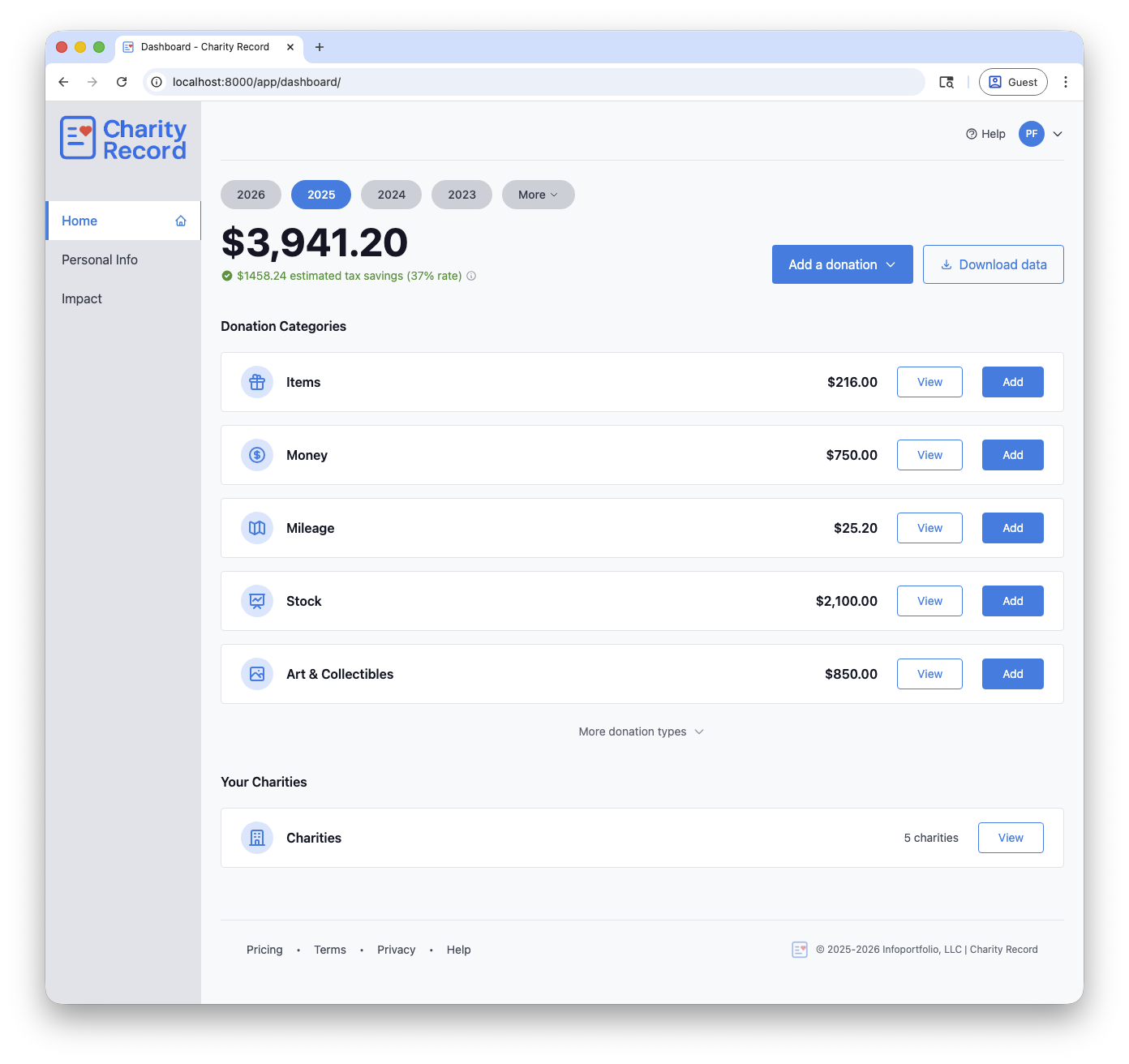 Your dashboard shows year-to-date totals, donation categories, and quick actions
Your dashboard has a few main sections:
- Year selector at the top to switch between tax years
- Grand total and estimated tax savings for the selected year
- Action buttons to add a donation or download your data
- Donation Categories cards showing totals by type
- Your Charities card linking to your charities list
Year selector
The year selector shows your most recent years as pill buttons, with a More dropdown for older years. Click any year to switch your dashboard view.
Your year selection is remembered between visits. If you come back later, your dashboard opens to the year you last viewed.
Grand total and tax savings
The large number at the top is your grand total for the selected year across all donation types.
Below it, you'll see an estimated tax savings figure based on the federal marginal tax rate from your Personal Info settings. Click the info icon next to it for details on how the estimate is calculated.
If you haven't set your tax rate, the dashboard uses a default 25% rate and shows a note suggesting you update your Personal Info for a more accurate estimate.
⚠️ This estimate is for reference only. It does not account for state taxes, tax bracket caps, AGI limits, or whether you itemize deductions. For details on how the calculation works, see How tax savings estimates work.
Adding donations
Click Add a donation to open a dropdown with all donation types:
- Item
- Money
- Mileage
- Stock
- Vehicle
- Digital assets
- Art & Collectibles
From the menu, you can also import donations from a CSV or XLSX file using the Import CSV/XLSX option at the bottom of the dropdown.
The donation is added to whichever year is currently selected on your dashboard.
For details on each donation type, see How do I add a donation?.
Donation Categories
Each donation type you've used (or pinned) appears as a card showing:
- The donation type name and icon
- Your total for that type in the selected year
- View to see all donations of that type
- Add to record a new donation of that type
Types you use frequently appear by default. Click More donation types at the bottom to see all seven types.
If a donation type shows "$0.00" or "No items yet," that means you haven't recorded any donations of that type for the selected year. If you expected a number here, try changing the year in the Year selector.
Your Charities
Below the donation cards, the Charities card shows how many charities you've added. Click View to manage your charities list.
Your charities are shared across all years. For more, see Managing Charities.
Downloading your data
Click Download data to open the export modal. From there you can choose a year and format:
- CSV for spreadsheets (available to all accounts)
- HTML for browser viewing and printing
- PDF for sharing with your tax preparer
- TXF for importing into TurboTax Desktop or H&R Block Desktop
HTML, PDF, and TXF exports are available to Charity Record Plus subscribers.
ℹ️ You can also export individual donations from any donation list page using the Download button on donation list rows. For details, see Exporting and Printing Your Donations.
Navigation
The sidebar on the left has three pages:
- Home returns you to your dashboard
- Personal Info is where you set your tax filing details (name, filing status, tax rate) used for the tax savings estimate and exports
- Impact shows a summary of your giving across all years
You can also access Help from the top of the page to find articles and answers.
Welcome screen for new users
If you don't have any donations or charities yet, a welcome screen appears over your dashboard with two options:
- Import my ItsDeductible data to upload a CSV or XLSX file
- Add an item donation to start recording manually
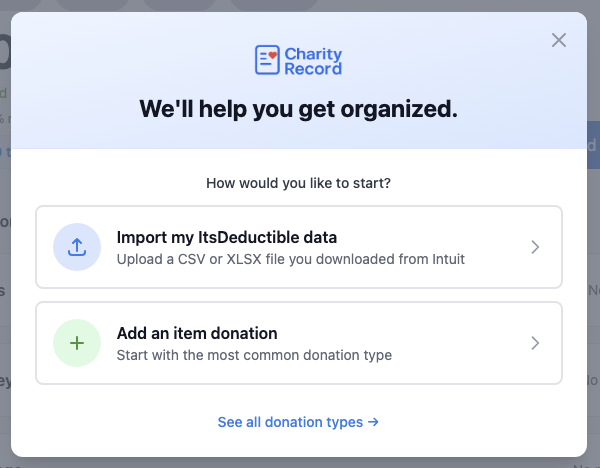 New users see a welcome screen with options to import or start manually
During tax season (January through April), the welcome screen also asks which year's donations you're entering.
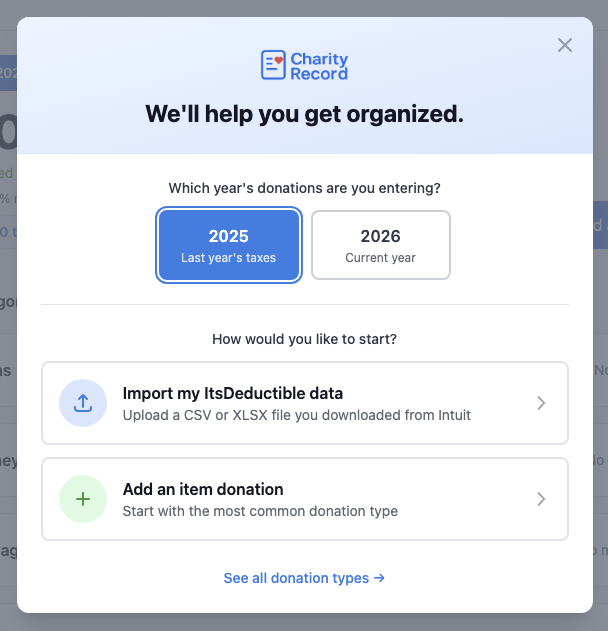 During tax season, a year picker appears so you can choose the right tax year
You can dismiss the welcome screen at any time. For a walkthrough of your first steps, see Getting Started with Charity Record.
Charity Record is a donation tracking tool, not a tax advisor. The tax savings estimate on your dashboard is for reference only and does not constitute tax advice. Consult a tax professional for guidance specific to your situation.