Editing and deleting donations
Summary: Open the correct year on your dashboard, click View on the donation type you need to change, and then click Edit to update a donation or the trash icon to delete it. All seven donation types use this same list flow. See How do I add a donation? if you need to record a new one instead.
How to find a donation to edit or delete
Start from your dashboard:
- Select the correct year using the year buttons at the top of the Dashboard. If the year of the donation is not visible, click More to see additional years.
- Find the donation type card (Items, Cash, Mileage, etc.) and click View.
- On the donation list, use the Search box to find a donation by charity name (and other details, depending on donation type), or scroll through the list. If scrolling, you may need to use the pagination buttons at the bottom of the page, if visible.
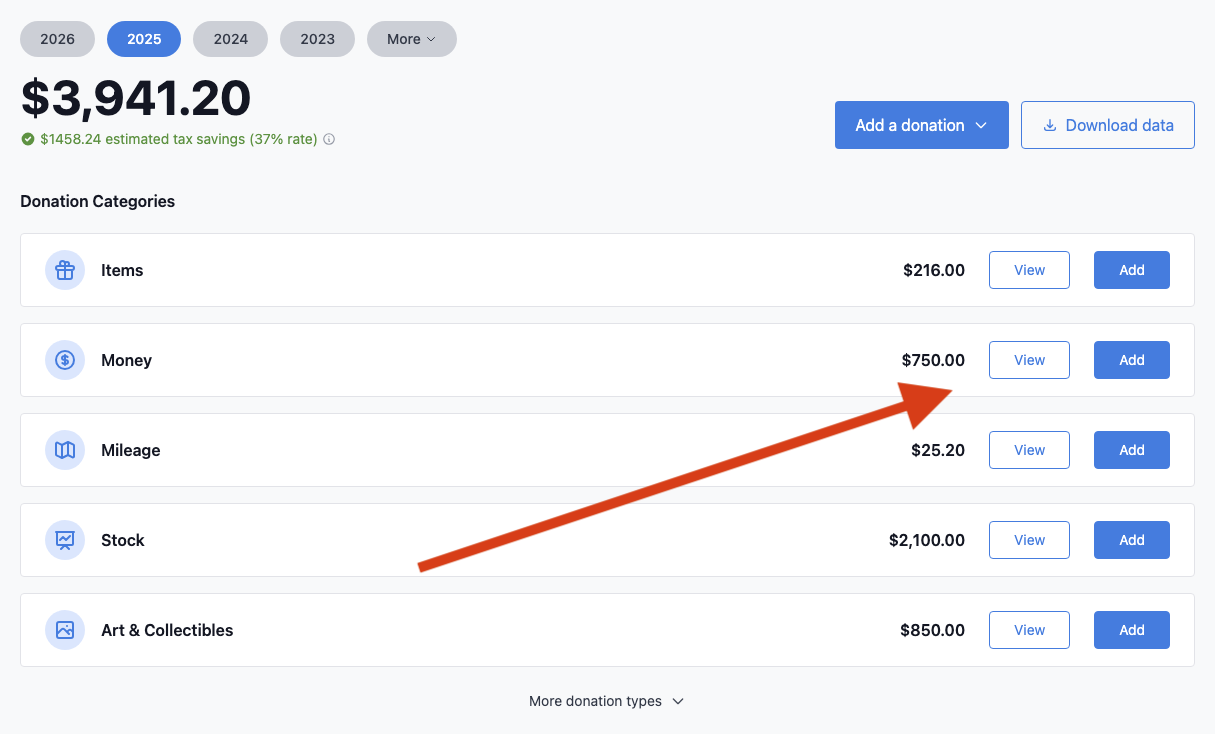 Use the View button to see the list of donations for a type in a given year
On desktop, the Edit button and trash icon appear in the right column of each donation row. On smaller screens, these actions appear at the bottom of each donation card.
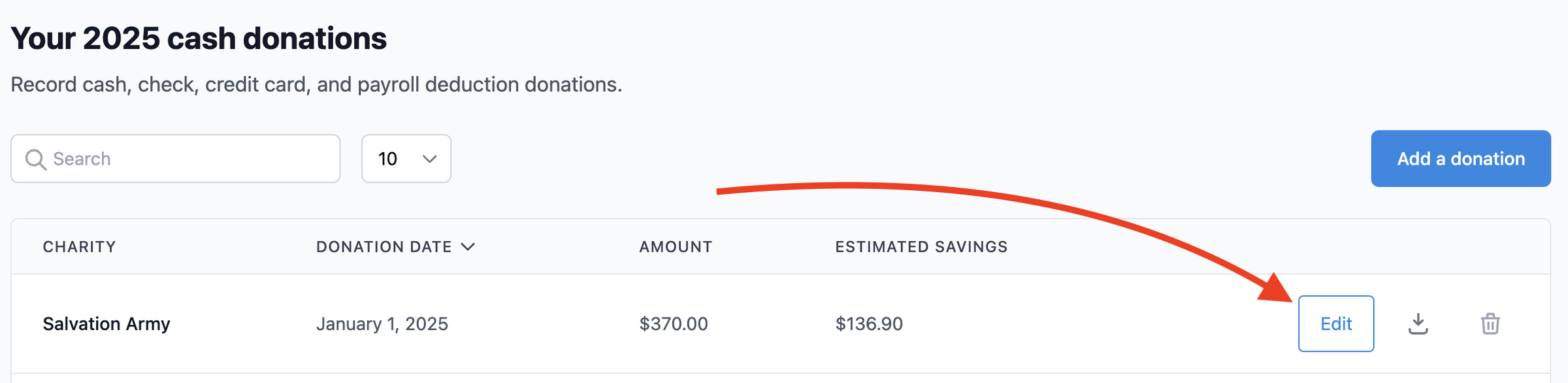 You can Edit a donation from the Donation List View using the Edit button
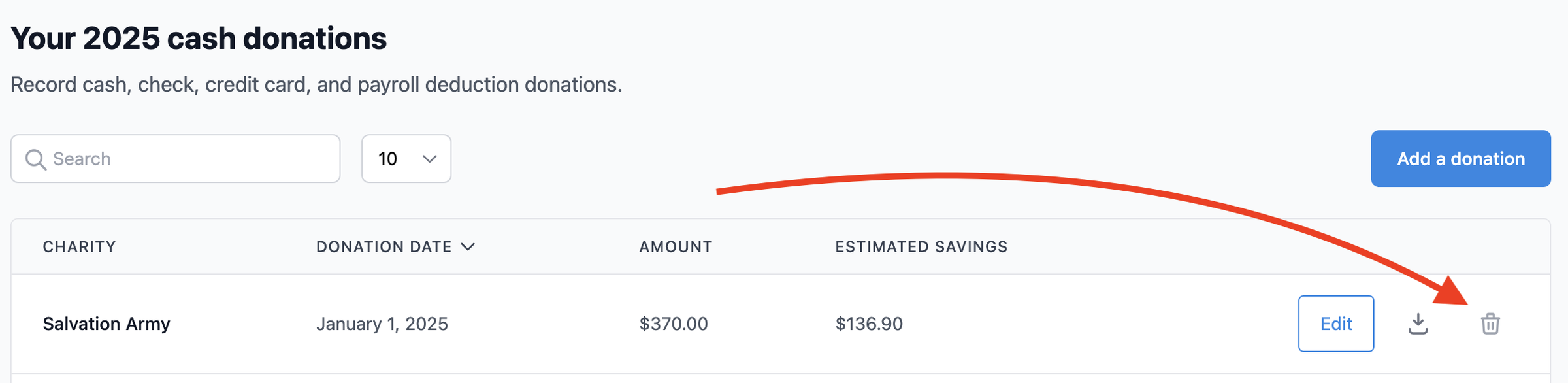 You can Delete a donation from the Donation List View using the trash icon
Editing a donation
- Click Edit on the donation you want to change
- The form opens with all your existing data filled in
- Update any fields you need to change: charity, date, amounts, notes, or other details.
- Click Save changes.
The edit form looks the same as the add donation form, so if you have added a donation before, the process will feel familiar. You can change any field, including the charity and the date.
Editing item donations
Item donations work slightly differently because each donation contains a list of individual items in a cart.
When you edit an item donation:
- Your existing items appear in the cart on the right
- Click Edit on any item to change its quantity, quality, or value
- Click Delete on any item to remove it from the donation
- Add new items using the item search and entry, or using the custom items form
- Click Save changes when you are done
Changes to individual items are not saved until you click Save changes for the whole donation.
Deleting a donation
- Click the trash icon (🗑️) next to the donation you want to remove
- A confirmation dialog appears showing the charity name, date, and amount
- Click Delete to confirm, or Cancel to keep the donation.
Deletion is permanent and cannot be undone.
Deleting a donation does not delete the charity. Your charities are shared across all years and remain available for future donations.
Common questions
I cannot find my donation
Donations are organized by year and type. If you cannot find an entry:
- Check the year. A 2025 donation will not appear when viewing 2026. Switch years using the pills at the top of your Dashboard.
- Check the donation type. Make sure you are looking in the right list (Items, Cash, Mileage, etc.).
- Search by charity name. Use the Search box at the top of any donation list.
My totals look wrong
If your totals seem too high or too low, check that your donations have the correct dates. A donation dated January 2026 will count toward your 2026 totals, even if you intended it for 2025. Click Edit on the donation – you can move donations between years by editing the date.
If the total is still wrong and you imported donations, verify that the same data was not imported twice. Check for duplicate entries in the donation list. If you still have questions, contact support.
Can I change the donation type?
You cannot convert a donation from one type to another (for example, from cash to stock). Instead, delete the incorrect entry and add a new donation with the correct type.
What happens if I edited or deleted a donation after I already exported?
Edits and deletions only affect your Charity Record app data. Previously exported files (TXF, PDF, HTML, CSV) are not updated automatically. Export again to get a file that reflects your changes.
Charity Record Plus subscribers can re-export TXF, PDF, and HTML. All users can export CSV.
For TXF exports, you can use the Add-on export option when you added new donations since your last full export. If you edited or deleted existing donations, use a fresh full export and remove previous imported data in your tax software before re-importing. You can also use the Split TXF option to download one file per donation and re-import selected donations, but deletions still need to be removed in your tax software. See TXF Export: What to Expect for details.
Charity Record is a donation tracking tool, not a tax advisor. This article explains product behavior and does not provide tax advice. You are responsible for ensuring your tax filings comply with IRS requirements. For questions about your specific tax filing, consult a tax professional.