Importing TXF files into TurboTax Desktop (Mac or Windows)
Summary: This guide walks you through importing a Charity Record TXF file into Intuit TurboTax Desktop. Screenshots are for Mac, though the steps should be similar for Windows. Cash and mileage donations need the fewest edits after import but may need followup. Item donations may require you to select a donation type and answer a few follow-up questions. We'll walk you through the steps.
For a general overview of TXF (including how to export it) and what to expect, see TXF export: what to expect.
Why is this so involved? TXF is a 1990s file format that stores basic information (charity name, date, and amount). It doesn't carry charity addresses, item descriptions, acquisition details, or valuation methods. TurboTax asks you to fill in those details after import.
Cash and mileage donations require the least manual edits after TXF import, but all donations need a few extra steps in your tax software. You may prefer to use PDF or HTML export, instead.
ℹ️ If you haven't subscribed to Charity Record yet or would like to test first, see our sample exports for a TXF file to use.
Charity Record is not affiliated with Intuit, TurboTax, or H&R Block. Product names are used for tutorial guidance.
Prerequisites: Before you start
Make sure you have:
- TurboTax Desktop for Mac or Windows
- Your TXF file downloaded from Charity Record
- A tax return open in TurboTax
Step 1: Import your TXF file
- In TurboTax, with a return open, import from the File menu:
- For Mac: go to File → Import → From TXF Files
- For Windows: go to File → Import → From Accounting Software
- Select your Charity Record TXF file
- TurboTax shows a preview of what will be imported:
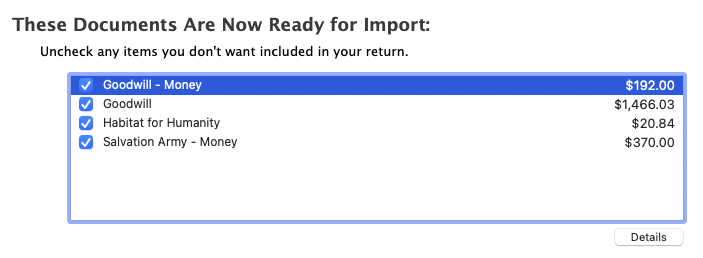 Preview your donations before importing
- Uncheck any items you don't want to import (usually, you'll keep everything checked)
- Click Continue or Import, depending on your version
Step 2: Review the import summary
After importing, TurboTax shows a summary of what was imported:
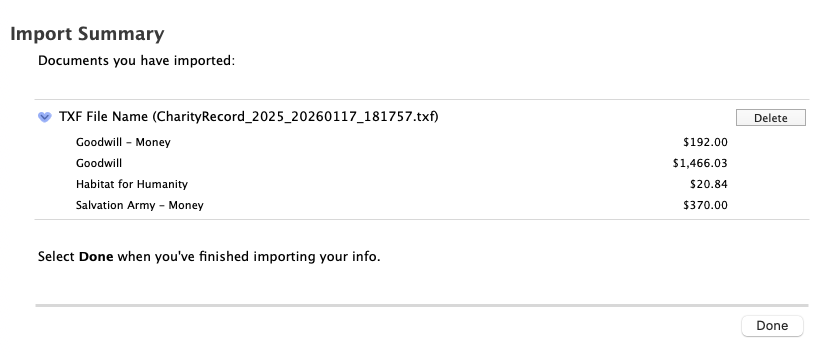 TurboTax confirms what was imported from your TXF file
Click Done to continue.
Step 3: Review your charities and donations
Navigate to your charitable donations section. TurboTax may show NEEDS REVIEW badges on some donations:
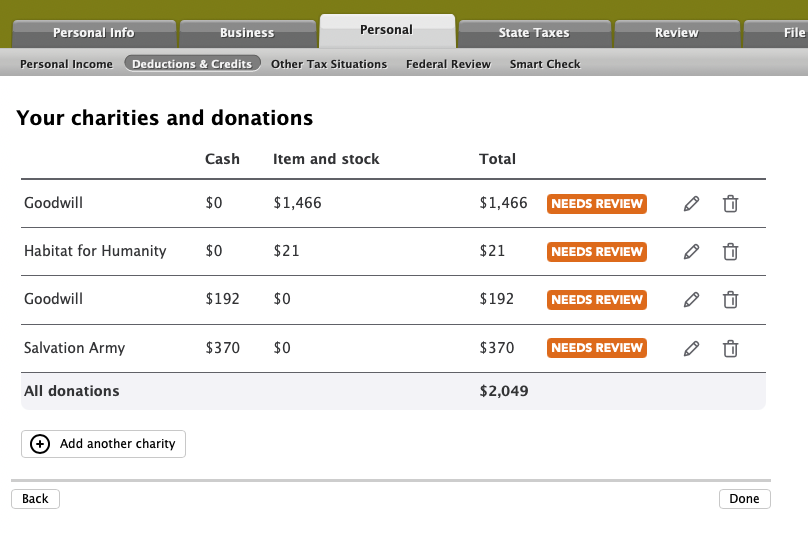 Item donations show NEEDS REVIEW until you complete the details
- Cash donations (include cash donations and mileage donations from Charity Record). These ultimately go to your Schedule A.
- Item donations need you to specify the type and may ask follow-up questions. These may trigger Form 8283 when your total non-cash donations exceed $500.
Click the edit icon on any donation marked NEEDS REVIEW to complete it.
Step 4: Complete item donation details
Selecting the donation type
For item donations, TurboTax asks you to select the type of donation:
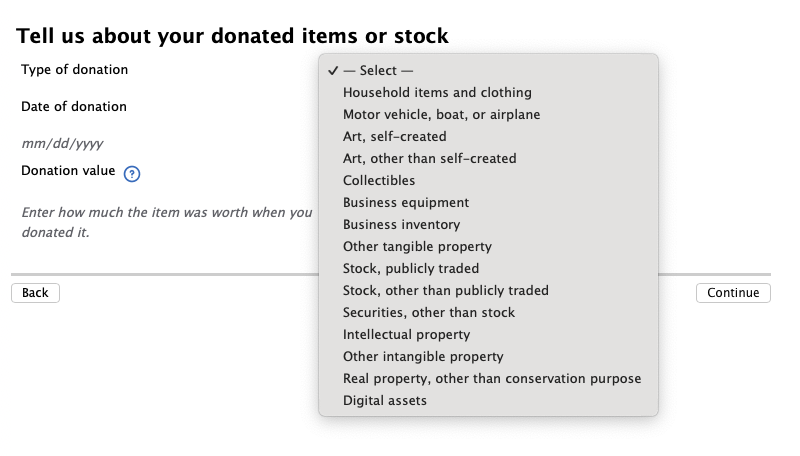 Select the type that matches your donation
For most Charity Record item donations (clothing, furniture, electronics, etc.), select Household items and clothing.
If you imported stock, vehicles, digital assets, or art from Charity Record, select the matching type here. If you are in this category, the TXF Import Guide you get when you export your TXF will let you know.
Entering the description and valuation method
TurboTax asks how you determined the value:
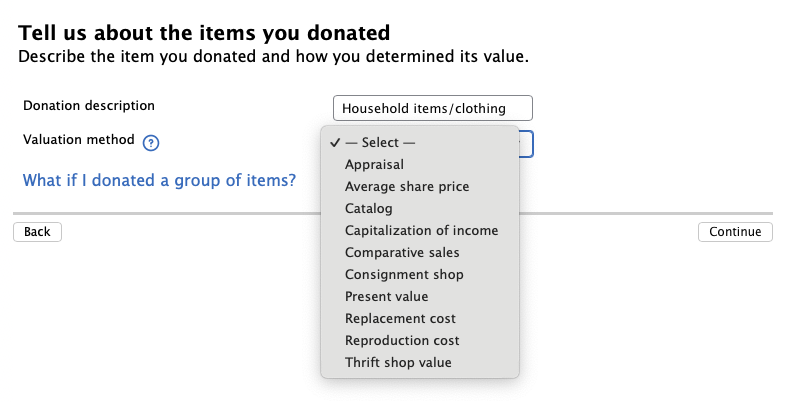 Enter a description and how you determined the value
- Donation description: Enter a brief description like "Household items/clothing"
- Valuation method: If you used Charity Record's FMV Guide, you can select Comparative sales or Thrift shop value. Otherwise, select the method which matches how you valued the items.
Step 5: Answer questions for donations over $500
For donations over $500, TurboTax asks additional questions required for Form 8283.
How did you get this item?
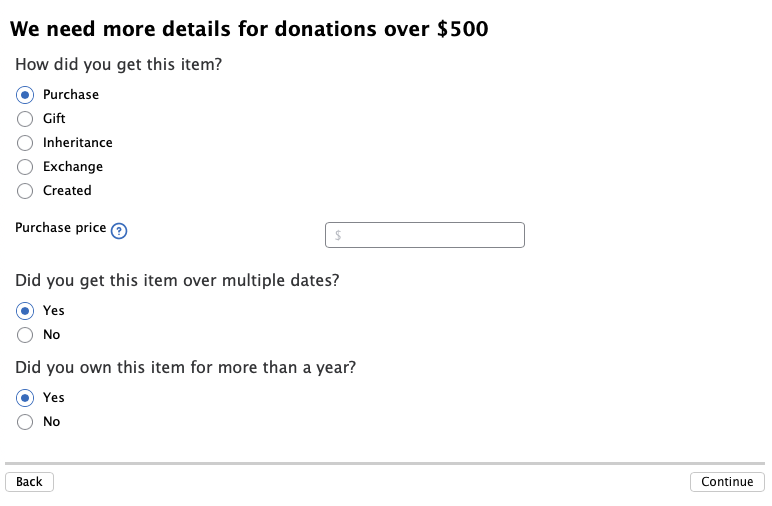 For donations over $500, TurboTax asks for Form 8283 details
Select how you originally acquired the donated items:
- Purchase – You bought the items (most common)
- Gift – Someone gave you the items
- Inheritance – You inherited the items
- Exchange – You received the items in a trade
- Created – You made the items yourself
Purchase price (cost basis)
TurboTax asks for the purchase price – what you originally paid for the items. This is your cost basis, which the IRS requires when Form 8283 is required.
If you don't remember the exact amount: You probably don't remember the exact amount you paid for your items – this is common. Enter your best good-faith estimate. For household items and clothing, a reasonable estimate based on what similar items cost when new is generally acceptable. And according to IRS Form 8283 instructions, if you have reasonable cause for not providing exact information, you can attach an explanation.
For more information about entering cost basis, read this help article.
Did you own this item for more than a year?
Select Yes if you owned the items for more than 12 months before donating. This is usually the case for household items and clothing.
Step 6: Uncommon situations
TurboTax asks about uncommon donation situations:
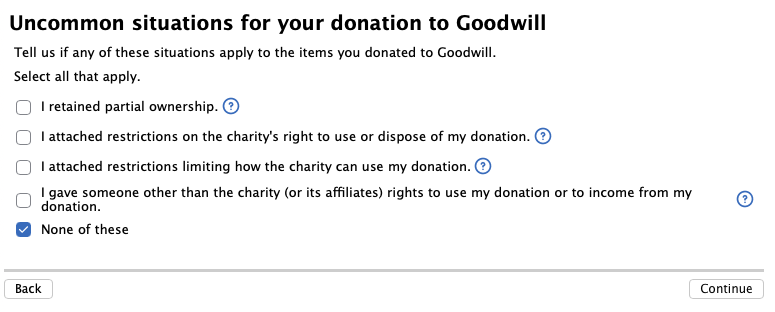 Most donations don't involve these special situations
For most donations, select None of these and click Continue.
Step 7: Fraternal societies and special organizations
After completing donations, TurboTax asks whether any of your charities are fraternal societies, veterans' organizations, nonprofit cemeteries, or private foundations:
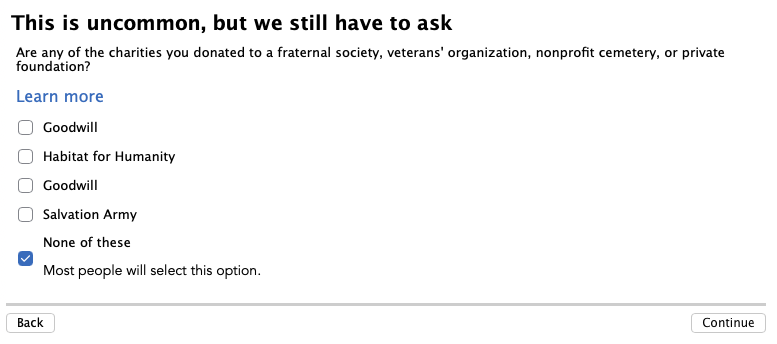 Select "None of these" for typical charities like Goodwill or Salvation Army
For most donations to typical charities (Goodwill, Salvation Army, Habitat for Humanity, etc.), select None of these and click Continue. If that isn't the case, answer accordingly.
Step 8: Enter the charity's address (if prompted)
TurboTax may ask for the charity's address. You can find this in Charity Record:
- Go to Organizations in Charity Record, from the Dashboard. Click View to see the list of organizations.
- Click on the charity
- Copy the address to your TurboTax address entry field.
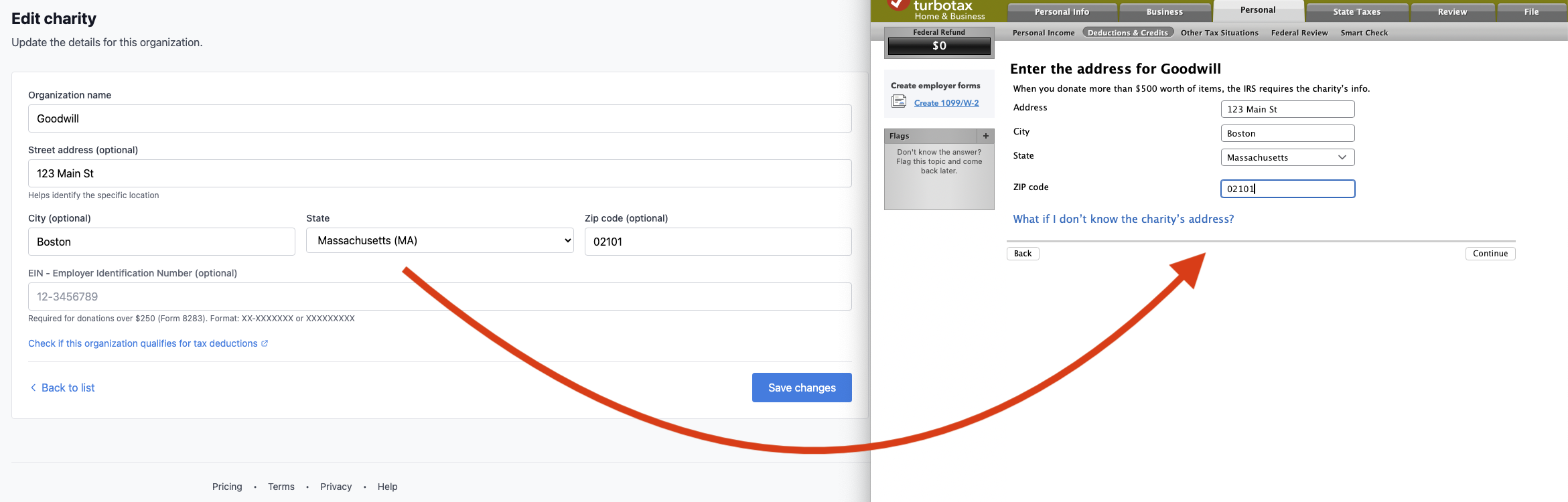 Copy the charity's address from Charity Record to TurboTax
If you don't have the address in Charity Record, you can usually find it on the charity's website or on the receipt they gave you. If your address was entered in Charity Record, it should also be present in the Import Guide.
Step 9: Verify all donations are complete
Once you've answered all the interview questions, return to the Your charities and donations screen. All donations should now show without NEEDS REVIEW badges:
 All donations complete – no more NEEDS REVIEW badges
Click Done to finish.
What needs review after import
Some categories of donations need fewer edits than others. Here is an overview of what to expect.
| Donation Type | Import Status |
|---|---|
| Cash | Verify the amounts, check charity detail |
| Mileage | Verify the amount, and optionally change 'Cash' to 'Mileage', check charity detail |
| Items under $500 | May need type selection, requires details as listed above when Form 8283 is triggered |
| Items over $500 | Needs type, purchase price, and acquisition info |
| Stock | Needs additional details (see your TXF Import Guide) |
| Vehicles | Needs additional details (see your TXF Import Guide) |
| Digital assets | Needs additional details (see your TXF Import Guide) |
| Art | Needs additional details (see your TXF Import Guide) |
For stock, vehicles, digital assets, and art, Charity Record generates a TXF Import Guide with guidance. Open it from the TXF preview page, or see Exporting and Printing Your Donations for an overview of all export formats.
Troubleshooting
"I imported the wrong file"
Go to File → Remove Imported Data, select the TXF import, and try again.
"TurboTax doesn't recognize my TXF file"
Make sure you're using TurboTax Desktop (not TurboTax Online). The file from Charity Record should have a .txf extension.
"My totals don't match"
TurboTax may combine donations to the same charity on the same date. Check that your overall totals match what Charity Record shows. If you have larger non-cash donations, Charity Record may split them into multiple line items for review. Your TXF Import Guide will tell you what to expect.
"I don't see the Import option"
Go to File → Import → From TXF Files on Mac, or File → Import → From Accounting Software on Windows. If you don't see this option, you may be using TurboTax Online or a version that doesn't support TXF import.
Related articles
Appendix: Using Forms Mode
If you prefer working directly with tax forms instead of the interview-style EasyStep mode, TurboTax also lets you enter charitable donations in Forms Mode.
In Forms Mode, your imported donations appear in the Charitable Organization Worksheet and Charitable Contribution Detail Worksheet:
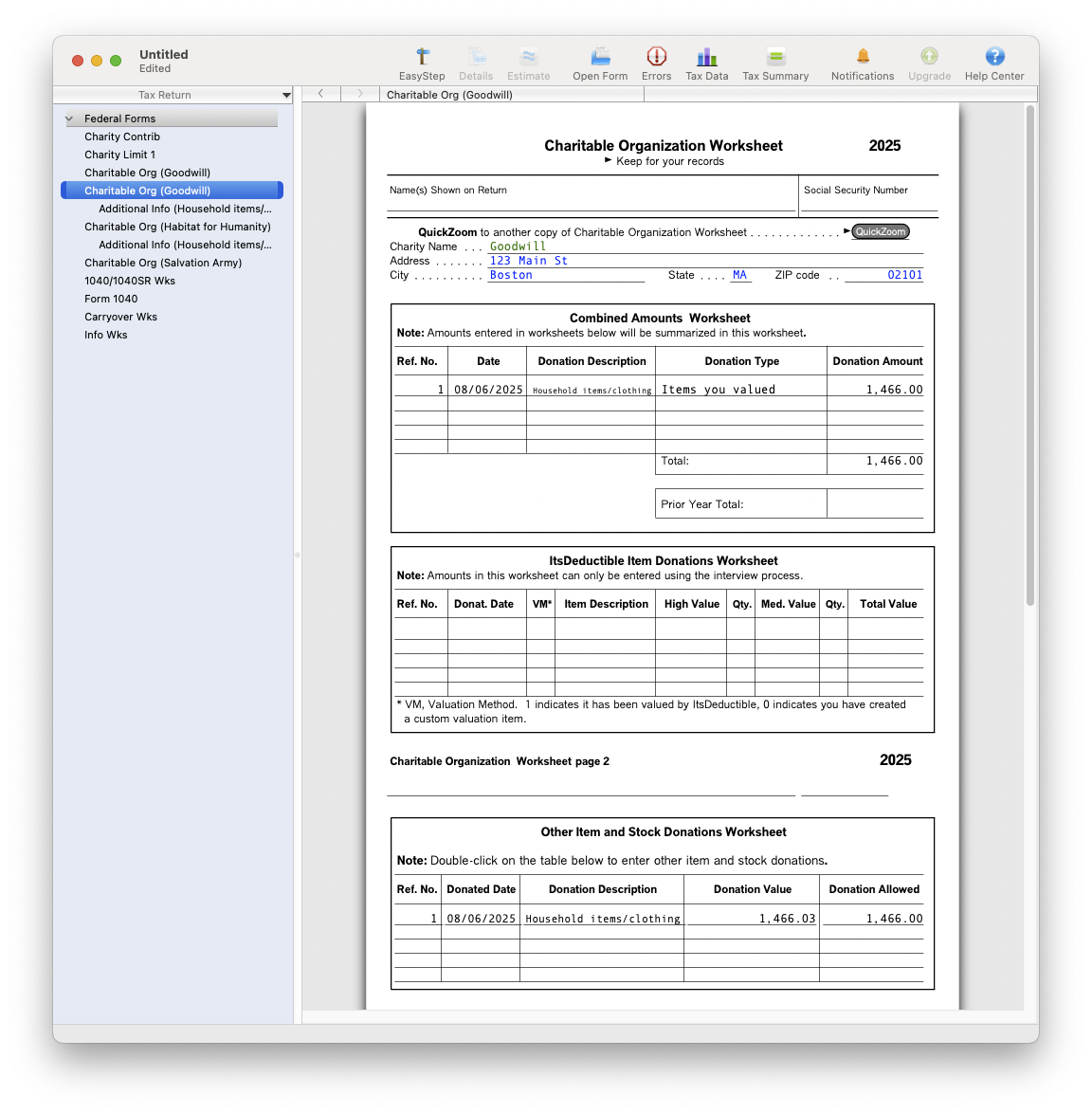 Charitable Organization Worksheet in Forms Mode
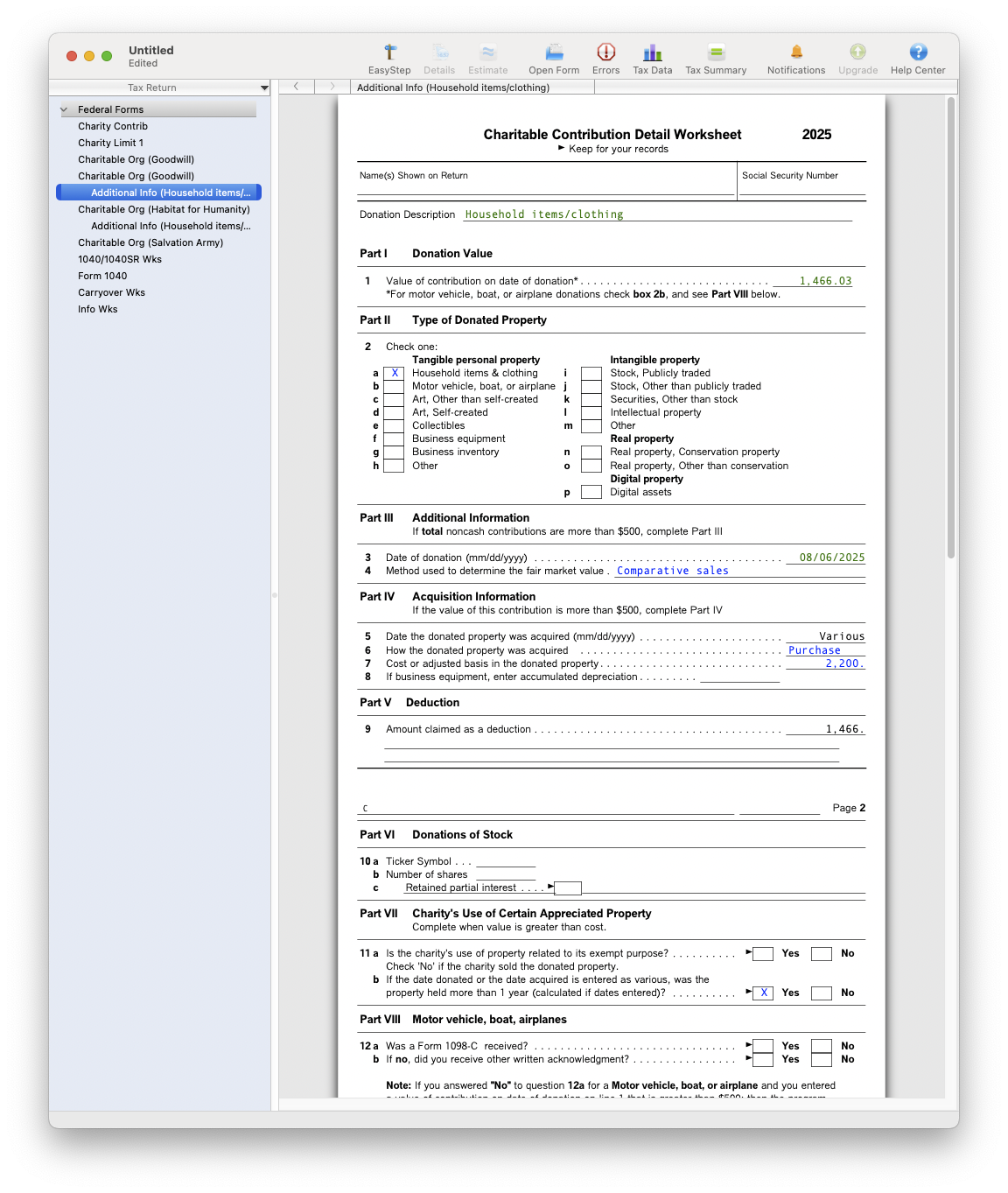 Charitable Contribution Detail Worksheet in Forms Mode
These worksheets contain the same fields as the interview questions – organization details, donation amounts, acquisition info, and valuation method. Forms Mode can be useful for reviewing or editing specific fields without stepping through the full interview.
Appendix: Advanced Options
Advanced options: Charity Record offers Advanced TXF options including individual file exports (ZIP) and add-on exports for donations added since your last export. Most users don't need these, but if you are having issues with merging donations, or you edited since your last TXF export from Charity Record, see TXF export: what to expect for details.
Charity Record is a donation tracking tool, not a tax advisor. This article summarizes publicly available IRS guidance and TurboTax workflows to help you use our software. You are responsible for ensuring your tax filings comply with IRS requirements. For complex situations (large non-cash donations, appraisals, or valuation questions), consult a tax professional for advice specific to your situation.