TXF Export: What to Expect
Summary: TXF is an import format best supported by TurboTax Desktop. It also works to some degree with H&R Block Desktop.
Cash, mileage, and item donations need the fewest number of manual edits. You will still need to update details which TXF format cannot carry.
Stock, vehicles, digital assets, and art need updates after import since TXF only stores basic fields. When your export includes these types (or certain types or combinations of items), we provide an Import Guide with edits to make. H&R Block Desktop supports TXF but has significant limitations.
For a general overview of all export formats, see Exporting and Printing Your Donations. You can also view sample exports to see what the TXF format looks like before exporting.
When TXF is a good fit
TXF lets you import basic details of supported donation types directly into your tax software instead of typing them manually. It does not support every detail.
- TurboTax Desktop (Mac and Windows) supports TXF import best
- H&R Block Desktop has limited TXF support (see limitations below)
- Export once per tax year and import into your return
- TurboTax Online and most web-based tax software do not support TXF (use PDF, HTML, or CSV instead and enter donations manually)
TXF has significant limits for some users. Use PDF, HTML, or CSV to enter into tax software if the TXF flow isn't working well for you. Charity Record Plus does not limit you from choosing other export types.
How to export TXF from Charity Record
From your Dashboard, select the proper Year, then click Download data, then select the TXF tab:
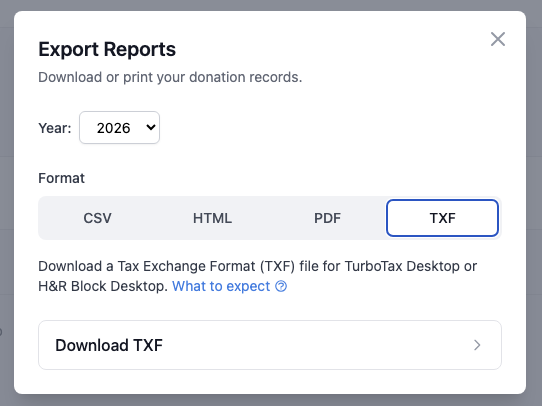 Dashboard → Download data → TXF tab
(You can also change the year on the Download data dialog, as shown.)
Click Download TXF to open the TXF preview page, where you can review your donations before downloading:
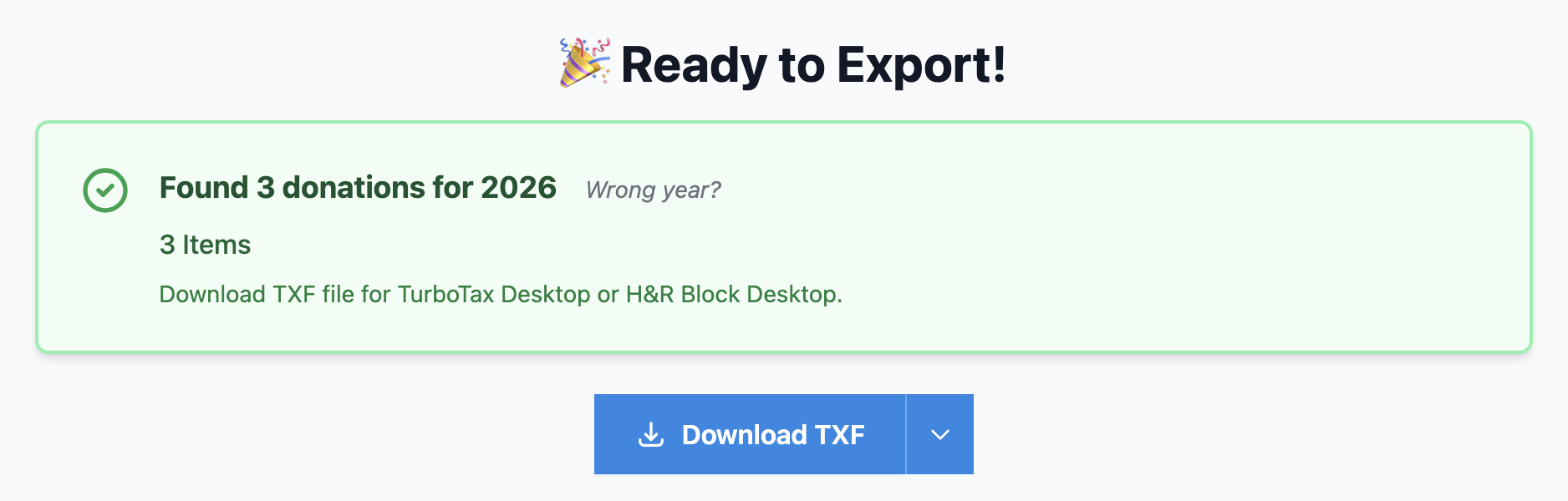 The TXF preview shows your donation count and totals.
Where TXF imports are supported
TurboTax Desktop (Mac and Windows)
TurboTax Desktop supports TXF import. Intuit’s official steps:
- Mac: File → Import → From TXF Files
- Windows: File → Import → From Accounting Software
If you need to remove an import: File → Remove Imported Data.
For a detailed walkthrough with screenshots, see Importing TXF files into TurboTax Desktop. The tutorial also shows the additional details you will need to update after import.
Reference: TurboTax: How do I import from the .txf file?
H&R Block Desktop (limited support)
H&R Block Desktop has more limitations with the TXF format:
- Aggregates all donations into just two totals (cash and non-cash), losing per-charity detail
- No per-donation breakdown — you can't see individual donations after import
See the sections below for options.
If you use H&R Block, the import path is:
- New return: Choose Other program that supports Tax Exchange Format (TXF) during setup
- Existing return: File → Import Financial Information → Other program that supports TXF
Better alternatives for H&R Block users:
- Split TXF export — Use the "One file per donation (ZIP)" option in Advanced settings. Import each file separately to preserve donation detail.
- Manual entry — Export PDF, HTML, or CSV from Charity Record and enter donations manually under Federal → Deductions → Cash or Money Donations and Noncash item donations.
For a walkthrough, see Importing TXF files into H&R Block Desktop.
Reference: How do I import my transactions into H&R Block? (CoinLedger guide)
What imports with the fewest edits
All donations will need you to review your import after importing to your tax software. These donation types import with the fewest number of edits needed:
- Cash donations
- Mileage donations
- Item donations where each item is under $500 and the total per charity and category is under $5,000.
(Note that your tax software will likely ask you to enter additional details for the fields that TXF can't carry.)
TXF groups entries by charity and date, so multiple donations to the same charity on the same date may appear as a single line in your tax software.
Note: Some versions of tax software may merge all donations to a single charity to a single date. You can use the Split TXF option to generate individual files (more info below).
What TXF cannot store for TurboTax
TXF stores payee name, date, and amount. TurboTax's TXF flow doesn't import, for example:
- item descriptions, quantities, or purchase price
- VINs, odometer readings, or other vehicle details
- stock ticker, shares, or cost basis
- crypto quantities, symbols, or cost basis
- art and collectible details or appraisal info
- purchase price information
- charity address
Your tax software may ask additional questions based on other details of your import, including the total amount. Charity Record will automatically do some TXF splitting as detailed below. Charity Record generates a guide to help walk you through that process at export.
How Charity Record maps donations to TXF
Cash and mileage
- Aggregated by charity and date
- Imports with the fewest edits
Items
- Items under $500 per item are generally aggregated unless you hit the conditions below
- Items over $500 per item are split into one line per unit, with the category and amount embedded in the charity name so you can identify them (e.g.,
Goodwill - Furniture - $650)
Why the split? Non-cash items over $500 are reported separately on Form 8283 Section A. We mirror that pattern so your imports line up with the form later. See Form 8283 basics for more details.
After import, you can optionally shorten the charity name back to, for example, just Goodwill. The line split is what matters for Form 8283 and the TXF flow, not the name.
When charity names include item categories
If either of these is true, Charity Record will include an item category in the export:
- Total non-cash items for the charity exceed $5,000, or
- A single item category for the charity exceeds $5,000
This helps disaggregate items for Form 8283 reporting. You can optionally clean up the charity names after import.
Other donation types (stock, vehicles, digital assets, art)
These are exported as non-cash TXF lines with a suffix in the charity name so TurboTax or H&R Block does not merge them. Examples:
- "Goodwill - Stock"
- "Goodwill - Vehicle"
- "Goodwill - Crypto"
- "Goodwill - Art"
They will import as generic items and need updates using the (generated) Import Guide.
What Charity Record's Import Guide will show you
When your export requires special attention, Charity Record generates a TXF Import Guide with guidance for TurboTax Desktop (users of other tax software can also reference this).
The guide includes:
- The donation name TurboTax shows after import
- The donation type to select instead, if applicable
- Values to enter that TXF can't carry (ticker, shares, VIN, FMV, cost basis, acquisition date, and so on)
You can open the guide from the TXF preview page.
You are ultimately responsible for the details you submit with your tax returns. Charity Record reflects your donation logs back to you and does not provide tax advice.
Dates labeled "Various"
If a donation is marked as recurring or “various dates,” TXF uses 12/31 of the tax year. This is a TXF limitation not a Charity Record limitation. If your tax software allows it, you can change the date to “Various” after import.
Other TXF limitations
You probably won't hit these (except negative values), but here are some other TXF corner cases:
- Long charity names are truncated because TXF uses fixed-width fields
- Unsupported characters are replaced with
?because TXF uses Windows-1252 encoding - Amounts are negative in TXF files (this is normal for expense entries)
For technical details on TXF, you can read the TXF specification.
Export and import steps
- On your dashboard, click Download data
- Select the tax year
- Choose TXF
- Open the TXF preview and download the file
- Open the TXF Import Guide to review what needs updating
- Import into TurboTax Desktop (recommended) or H&R Block Desktop
- Update any flagged donations using the Import Guide
Download options
⚠️ Most users do not need these options. This section details Advanced TXF options and Split TXF Mode.
The TXF preview page shows your donations and a download button with a dropdown arrow for additional options:
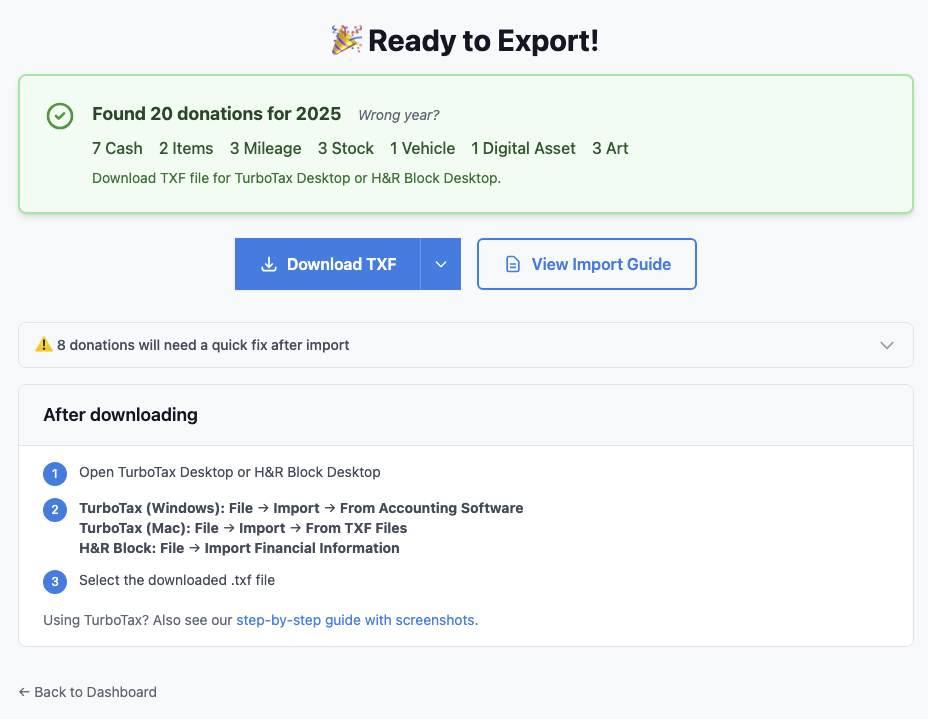 The TXF preview page shows donation counts by type, a download button, and the Import Guide link.
Click the down arrow on the download button to see additional options:
 The dropdown offers full export, add-on export (new donations since last export), and Advanced TXF options.
ℹ️ You will only see the Add-on option if you added additional donations since the last time you exported a TXF. Note that edited donations do not trigger this option; you either need to remove imports and import the full TXF export again, download and import single donations with Split TXF mode, or manually edit or enter edited donations in your tax software.
Advanced TXF options
Click Advanced TXF options... to open the advanced panel:
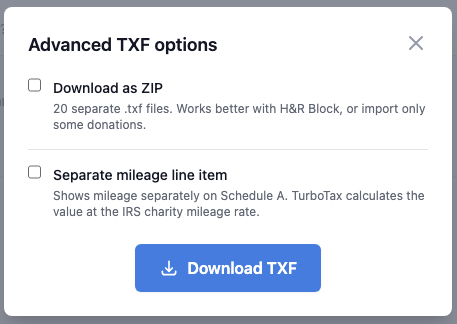 Advanced options include split mode and separate mileage.
Download as ZIP — Creates one TXF file per donation in a ZIP archive. Useful for:
- H&R Block users (which aggregates donations into one line)
- Troubleshooting TXF import issues by importing donations one at a time
- Cherry-picking which donations to import
(⚠️ - Experimental) Separate mileage line item — By default, TXF combines mileage with cash donations. This option exports mileage as a separate line item so TurboTax shows them distinctly. Both still go to Schedule A Line 11 (Gifts to Charity), and TurboTax applies the IRS standard mileage rate for charity. If you're unsure, leave this off.
Troubleshooting
Imported the wrong file?
TurboTax Desktop: File → Remove Imported Data, then import again.
Can't import?
Confirm you are using TurboTax Desktop or H&R Block Desktop, not the online versions.
Charity Record is a donation tracking tool, not a tax advisor. This article summarizes publicly available IRS guidance to help you use our software. You are responsible for ensuring your tax filings comply with IRS requirements. For complex situations (large non-cash donations, appraisals, or special stock transactions), consult a tax professional for advice specific to your situation.